Trending Photo editing in Alight Motion Instagram PH92 ph92
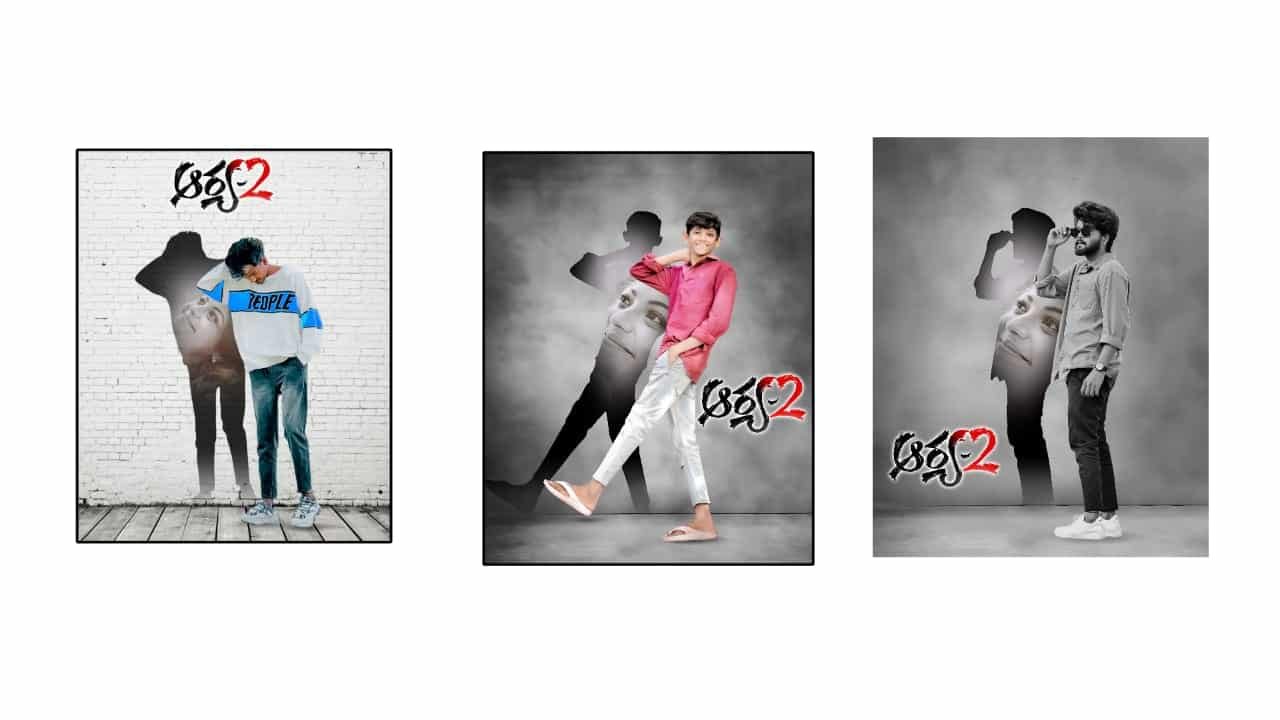
Trending Photo Editing in Alight Motion – Instagram Viral Style
Trending photo editing in Alight Motion has become a popular way to turn simple images into stunning visual reels on Instagram. With just one or two high-quality photos, you can create a powerful, professional-looking video that follows the latest Instagram trends. Whether it’s a love theme, attitude style, or birthday vibe, Alight Motion gives full control to animate photos, add glowing effects, and sync with viral audio — all directly on your mobile.
To begin, choose a clear, high-resolution photo. It could be a solo pic, a name art image, or a stylish pose. Open Alight Motion and create a 9:16 vertical project, ideal for Instagram Reels. Now import your photo into the timeline. Set the length of your clip based on the audio you’re using — most trending Reels last between 12 to 30 seconds.
Next, add a trending BGM or remix audio. You can find these sounds on Instagram Reels or YouTube. Once the audio is added, start working on syncing your edit with the beat. Use keyframe animation to zoom in or out slowly. You can add a slight bounce or shake on the beat to make the visual more engaging.
Apply effects like glow, blur, shadow, or vignette to the photo. For a glowing Instagram feel, duplicate the photo layer, apply Gaussian Blur on the top layer, and set it to “Add” blend mode. This creates a smooth light glow. Add overlays such as sparkles, fireflies, smoke, or light streaks using blend modes like Screen or Overlay. These give the video a premium look.
Now it’s time for text animation. If the trend includes lyrics or quotes, add text in clean fonts like Montserrat, Nexa Bold, or a handwriting font for love edits. Animate each line to appear on the beat or fade smoothly in and out. Add glow or shadow to the text so it stands out against the background.
To create more motion, use motion blur and zoom transition effects. You can make your photo slide in, rotate, or bounce as the music changes. For reels that use dialogues or attitude beats, add shake effects on each strong beat. You can even split the photo and animate parts separately for a more cinematic feel.
Color grading is also important. Apply color filters that match the mood — warm tones for love and feel edits, cool blue or high contrast for attitude or dark edits. For a unique style, use a soft light leak or gradient layer in the background.
Once your editing is complete, preview the full project. Make sure it’s synced properly and flows smoothly with the beat. Export the video in 1080p HD for best quality. Keep the duration short and attractive, and upload it to Instagram with a short caption.
Photo editing in Alight Motion is more than just filters — it’s about rhythm, effects, and creativity. With regular practice and attention to trends, your reels can stand out and even go viral.
Photo project
DEBBA DEBBA PHOTO
All photos link


















Post Comment