Photoshoot video editing bgm275 BGM275
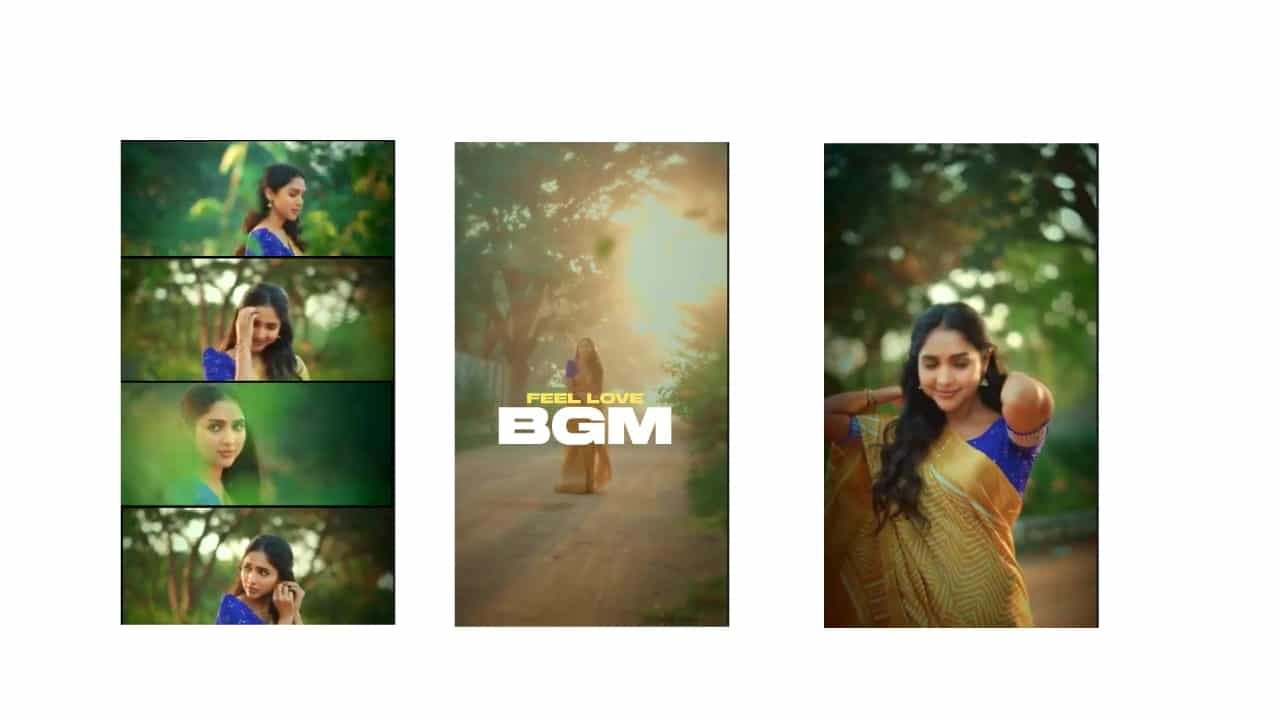
Photoshoot Video Editing on Mobile – Instagram Trending Style
In today’s digital age, a photoshoot video edit is one of the most effective ways to showcase your photography skills or share a creative project with your followers. Whether it’s a fashion shoot, a travel vlog, or a special event, turning your photoshoot into a dynamic and cinematic video can capture your audience’s attention. With just your mobile phone and a few powerful editing apps like Alight Motion, CapCut, or Kinemaster, you can easily create stunning videos that highlight your best photos in a stylish and trending way.
Choosing Your Photos
The first step to creating a photoshoot video is selecting the best photos from your shoot. Pick a mix of wide shots, close-ups, and portrait shots that showcase different angles, expressions, and outfits. If it’s a fashion shoot, make sure the photos have clear lighting, bold poses, and vibrant colors. For travel or lifestyle shoots, select images that capture the essence of the moment—think scenic backgrounds, candid moments, and stylish action shots.
If needed, you can edit your photos first using apps like Snapseed or Lightroom to adjust brightness, contrast, and color balance. Applying a consistent filter or preset will give the photos a cohesive feel. Use soft tones for a dreamy vibe or bold colors for a more vibrant and energetic feel.
Selecting the Perfect Music
A good photoshoot video isn’t just about the images; it’s also about the music that accompanies them. Choose a background track that matches the vibe of your shoot. For example, use a slow, emotional song for a romantic photoshoot, or a fast, upbeat track for a fashion shoot. Trending Instagram sounds or instrumental beats work perfectly for these types of edits. You can find music on Instagram’s audio library, YouTube, or royalty-free music sites.
Import the audio to your editing app and trim it to fit the video length. Instagram reels are usually 15-30 seconds, so make sure to sync your visuals with the music’s rhythm for a smooth flow.
Editing the Video
Open Alight Motion, CapCut, or your preferred mobile editor, and create a vertical project (1080×1920). Import your photos one by one and start placing them on the timeline. To make your photos dynamic, apply zoom-in or zoom-out animations. For example, you can zoom in slightly on a subject’s face to emphasize emotion or focus on details like jewelry or outfits.
Use keyframes in Alight Motion to adjust the position of the photos, or create panning effects (left-to-right or top-to-bottom) to give the video a sense of motion. For action shots or photos with a lot of details, use slow zooms to draw attention to specific elements in the picture.
Adding Text and Captions
A photoshoot video feels more complete when you add some text overlays. This could be a short caption, a quote, or the name of the shoot. For instance, for a fashion shoot, you could add a line like “Bold, Beautiful, Unstoppable,” or “Captured in Style.” Use elegant fonts such as Montserrat, Playfair, or Great Vibes to keep the text stylish.
You can animate the text to appear with smooth transitions—like fading in, sliding up, or typing in one by one. This adds to the cinematic feel of the video and keeps it visually interesting. Make sure the text doesn’t overpower the image; keep it subtle and well-placed.
Adding Effects and Transitions
The next step is to add some transitions to your video. Smooth transitions are key to making the video flow naturally. Use effects like fade, cross-dissolve, or blur to transition between photos. These soft transitions work well for artistic or fashion videos. If you want something more energetic, consider adding glitch effects or flash transitions to match a faster-paced song.
For a more cinematic effect, use light leaks, bokeh effects, or flare animations to add visual interest. These effects can be added as overlays and set to blend with the photos. Use them sparingly—just enough to enhance the video and make it feel magical.
Final Touches
To give your video that professional touch, you can apply color grading to your entire video. Use warm tones for a golden, sunset feel, or cool tones for a more calm and serene look. Adjust the contrast and saturation to make the colors pop or reduce them for a muted aesthetic.
In the final moments of the video, use a fade-out effect on both the images and the music. If you’ve added a caption, make sure the text fades out as well. This creates a soft and elegant ending to your video, leaving a lasting impression on your viewers.
Exporting and Sharing
Once you’re happy with your edit, export the video in 1080p at 30 or 60 FPS. Make sure the file size is optimized for Instagram or other social media platforms. You don’t want the quality to be compromised when uploading. Once exported, upload the video to Instagram Reels, TikTok, or YouTube Shorts with a relevant caption and hashtags.
For Instagram, try captions like “Captured moments” or “Elegance in every frame,” and include relevant hashtags like #FashionShoot, #PhotoshootVideo, or #CinematicEditing to help your video reach a wider audience.
Conclusion
Editing a photoshoot video on mobile isn’t just about showcasing your photos—it’s about creating a dynamic, emotional experience for your audience. With the right selection of photos, music, and editing techniques, you can turn any simple photoshoot into a cinematic video that not only highlights your creativity but also draws in viewers with its aesthetic appeal. So, pick up your phone, start editing, and watch your photos come to life with beautiful transitions, effects, and the perfect soundtrack.
Full project video
Full project photo
XML file
Song of


















Post Comment