All birthday Video Editing in Alight Motion BGM244 bgm244
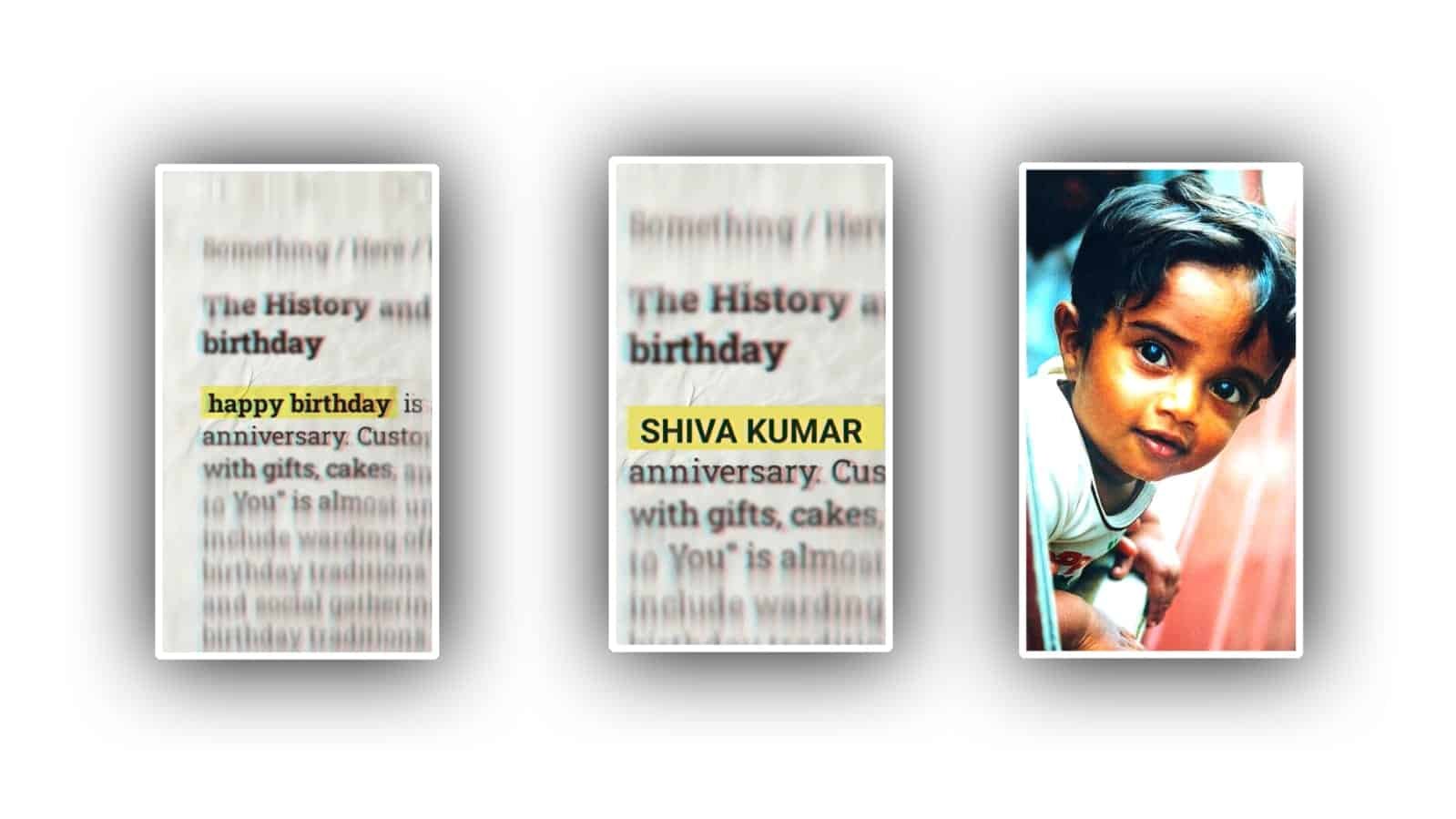
All Birthday Video Editing in Alight Motion – A Creative Guide for Stunning Birthday Videos
Creating the perfect birthday video is a great way to wish someone special while showcasing your creativity. With Alight Motion, one of the most popular video editing apps, you can craft dynamic, beautiful birthday videos that will stand out. Whether you’re making a surprise gift for a friend, family member, or even a loved one, Alight Motion offers powerful tools to bring your vision to life.
In this guide, we’ll go over the steps to create amazing birthday video edits using Alight Motion, focusing on effects, transitions, and other creative elements that can make your video unforgettable.
1. Getting Started with Alight Motion
Before diving into the creative editing process, make sure you have Alight Motion installed on your device. The app offers both free and premium features, so you’ll have access to a variety of editing tools, depending on your plan.
- Open the Alight Motion app: Start a new project by selecting the Create New Project option.
- Choose Aspect Ratio: Set the appropriate aspect ratio for the platform you’re editing for. If you plan to upload to Instagram, you might want to select a 1:1 ratio (square) or 9:16 for vertical video (Instagram stories/Reels).
- Import your footage: You can import photos, video clips, or any media you want to use in your birthday video. You might want to select a few birthday-themed clips or personal videos that will give your project a personal touch.
2. Choosing the Right Birthday Song or Background Music
Music is crucial in creating the mood for a birthday video. Whether it’s an upbeat song or a soft background track, music can enhance the overall vibe of your video.
- Add a track: Alight Motion allows you to add your preferred audio files. Choose a happy birthday song, a popular track, or any personalized sound that fits the occasion.
- Sync music with your video: It’s important to match your visuals with the beat of the music. Use Alight Motion’s timeline features to sync your transitions and text with the rhythm of the track.
3. Using Text and Titles to Make It Personal
A birthday video wouldn’t be complete without heartfelt messages, captions, or titles. Adding personalized text can really elevate your video.
- Add Text: In Alight Motion, tap on the + button and select the Text tool. You can add “Happy Birthday”, the person’s name, or any other special messages you want to include.
- Font Styles: Choose a font that matches the tone of the video. You can use fun, playful fonts for a cheerful birthday vibe or elegant fonts for a more formal, classy look. Some popular options include Bebas Neue, Lobster, or Pacifico.
- Text Animations: Alight Motion allows you to animate your text with effects like fade-ins, zoom effects, and bounce animations. This will make your text more dynamic and engaging. You can also adjust the duration and timing to match the music.
4. Adding Custom Transitions
To make your birthday video more polished, use smooth transitions between clips. Alight Motion offers a variety of transition effects to make your video flow seamlessly from one moment to the next.
- Transition Effects: You can use a fade transition, slide transitions, or even flash transitions to add more flair to your video. Choose effects that match the style of the video, whether you’re going for a fun, energetic mood or a calm, serene atmosphere.
- Customizing Transitions: Alight Motion gives you the option to customize the timing, easing, and direction of your transitions. You can play around with speed curves to create smoother, more natural transitions.
- Creative Layering: Use layered transitions for added depth. Layer multiple images or video clips on top of each other and apply transitions to each layer for a more intricate visual experience.
5. Adding Visual Effects and Filters
Visual effects can dramatically enhance the overall appearance of your birthday video. With Alight Motion, you have access to a wide range of effects that can be applied to both videos and photos.
- Filters: Start by adding color correction filters to your video. This can improve the visual tone of your birthday video and give it a more professional look. Alight Motion offers options to adjust brightness, contrast, and saturation.
- Effects: You can apply sparkles, glow effects, or bokeh effects to give your video a magical, celebratory feel. Consider adding confetti effects or animated balloons for a festive touch.
- Custom Effects: Alight Motion also has features to create custom effects using keyframes. You can animate elements like text, shapes, or images to appear in a fun and creative way during your video.
6. Adding Fun Stickers and Graphics
To add an extra layer of fun to your birthday video, you can use Alight Motion’s extensive collection of stickers and graphics. This is especially effective if you’re looking to make the video more vibrant and youthful.
- Birthday-themed Stickers: Use birthday-themed graphics such as cakes, candles, balloons, presents, or party hats to visually enhance the video.
- Animated Stickers: If you want to take it a step further, add animated stickers that move throughout the video, like bouncing balloons or spinning presents.
- Custom Shapes and Logos: You can create your own custom shapes and logos that fit the birthday theme, using Alight Motion’s vector tools.
7. Keyframe Animations and Effects
Alight Motion gives you the ability to use keyframe animations to control the movement, rotation, and opacity of any element in your video. This is perfect for adding unique animations to your birthday message or visuals.
- Animated Text: You can animate your birthday messages by adjusting their position, size, and rotation using keyframes. For example, you could make the text bounce, zoom in, or rotate across the screen.
- Element Animations: You can animate other visual elements like balloons or confetti to fall down or move across the screen. This can add an extra layer of energy to your video.
- Smooth Motion: Use easing functions in Alight Motion to make your animations smoother, giving them a more professional, polished look.
8. Final Touches and Exporting
Once you’ve added all the creative elements, it’s time to refine your video and make sure everything is in place.
- Fine-tune Adjustments: Go over your video to ensure all transitions, text, effects, and music sync correctly. Adjust timing and speeds if necessary.
- Export Settings: Alight Motion allows you to export videos in high quality. Select the best resolution (usually 1080p or higher) for your final video. You can also choose the frame rate and bit rate to ensure smooth playback.
- Preview the Video: Before exporting, preview your video to make sure everything looks perfect. If needed, make last-minute edits.
Conclusion
With Alight Motion, you have all the tools necessary to create amazing birthday videos that are sure to impress. From adding vibrant effects, text animations, and custom stickers to syncing music and transitions, you can craft a birthday video that celebrates the occasion in style. Whether you’re creating a video for a loved one, a friend, or a family member, Alight Motion offers everything you need to bring your creative vision to life.
Full project
Xml
Song


















Post Comment