Instag Trending BGM Name Art Video Editing in Alight motion Trending video editing 5sep3
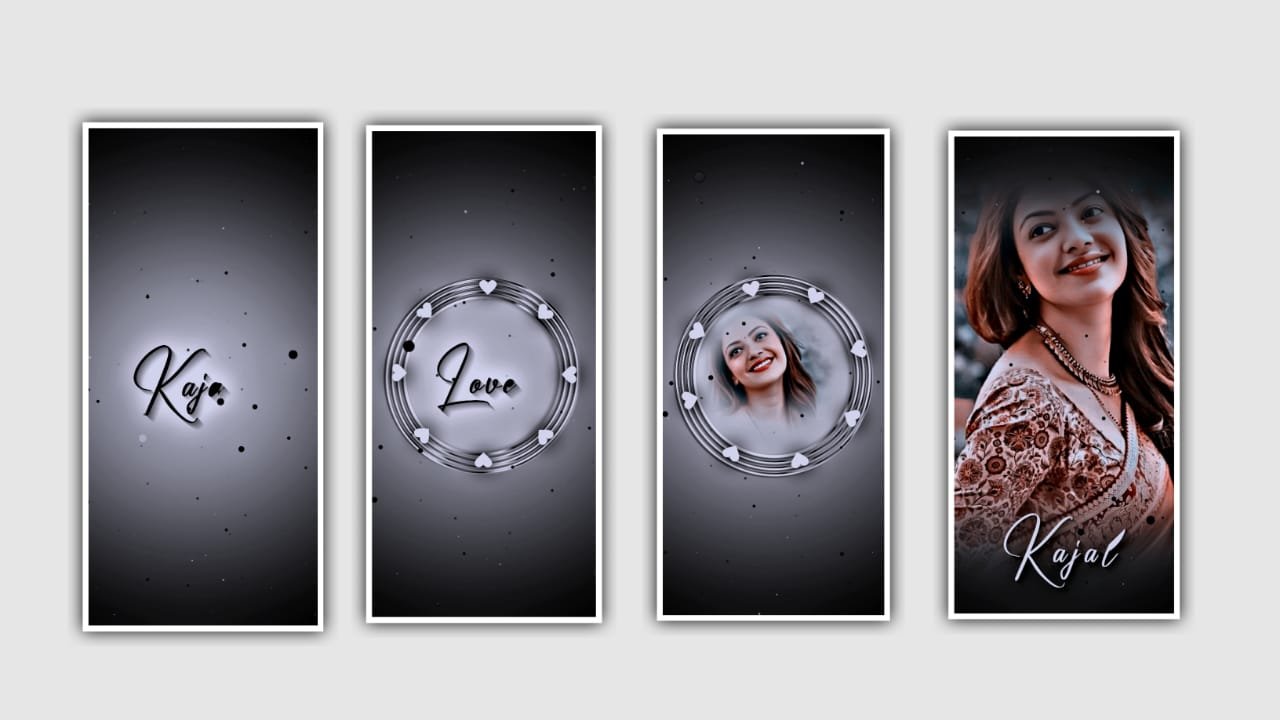
Hi friends in this video I will explain about the trending lyrical video for using various effects in alight motion application and click on plus icon and select the ratio which you prefer and click on create project to continue the process of editing.
After that we need to add the song in background for that click on the icon and select the option audio and click on view all to add the song which you want to edit and click on plus icon to add. I am drag the song up to 30 seconds and extra part can be trim. After that come back to starting and we want to add the lyrics for the project previously I can add the lyrics into notepad now go back to notepad and copy the lyrics from notepad and come back to be project and click on add text and paste the copied lyrics into this layer.
After that click on roboto regular and select the font which is given in this description. And select the colour white and click on plus icon. After that click on first layer and make it as a duplicate layer I am select duplicate layer and go back to notepad and copy the lyrics and come back to this project and paste the copied lyrics into the duplicate layer and we can add another font which is given in description.
After that click on the duplicate layer and select the option effects and select add effect text spacing with standard settings and keep letter spacing= 15, and zoom out the lyrics and keep it as a possession. After that we need to add the song lyrics for that click on plus icon and click on edit text and go back to notepad and copy the lyrics from notepad and come back to this project and pay the lyrics into the layer.
After that click on roboto regular and select the font. And select the colour which you prefer. And click on boarder and shadow and select stroke enable and keep it as 2.0 and enable shadow. Now come back to starting and select the first layer and click on effects and select the effect text spacing with standard settings and keep it as 15%. And zoom the lyrics by using move and transform and keep the alignment in centre. After that select two layers and paste them as duplicate layers. And paste the remaining lyrics into this project.
After that we need to add another font for the lyrics and select the colour which you prefer. And adjust the lyrics with your fingertips. And select group 1 and click on add effects and select the effect wipe with standard settings and add a key frame in middle and keep it as 0.00 and add another key frame in ending and keep it as 112.8. and select the option end and add a key frame in middle and keep it as 0.00 and add another key frame in ending and keep it as 0.98.
and select angle and keep it as 27.0%. now copy the same effects to remaining lyrics. After that click on export icon and export the video. After that open node application and click on plus icon and select the ratio as 16:9 and select the resolution as 1080X1350 and select 60fps.
And click on plus icon and select the export led video into this project. And now select the glow effect with standard settings and select the colour which you prefer and play the song and see the glow effect and click on export icon to export the video.
Hope you are understanding how to edit this project. Please support us by visiting our website Thankyou.
All Meterials Links :-
►Kinemastar Preset Link 👇
DOWNLOAD NOW
►Beat Mark project preset :
DOWNLOAD NOW
►Beat Mark XML file LINK :-
DOWNLOAD NOW
►Photo effect Preset LINK 👇
DOWNLOAD NOW
►Photo effect XML LINK 👇
DOWNLOAD NOW
► Video All photo LINK👇
DOWNLOAD NOW
► Song Download Link 🔗
DOWNLOAD NOW


















Post Comment