Instagram Trending Photo Clean lyrical video editing in alight motion lyrical video editing8sep1
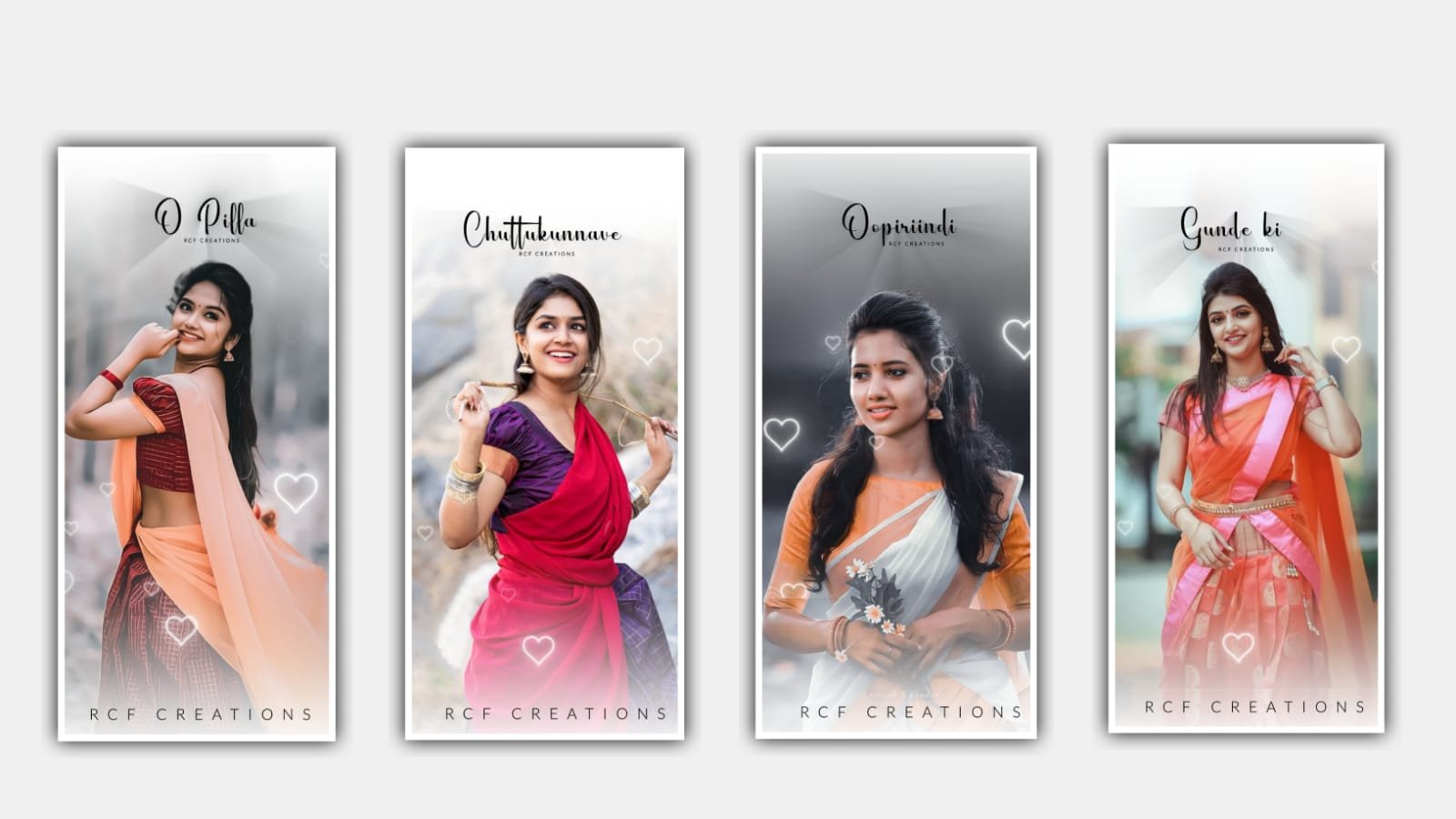
Hi friends in this project I will explain about new trending multiple video tiles editing by using alight motion application. Open alight motion application and click on plus icon and select the ratio which you prefer and click on create project. Now click on plus icon and select the option image and video and select the video which you want to edit in this project select the image by clicking plus icon to add into this project. After that adjust the video with your fingertips. And now click on video layer and select the option add effects and select the effect tiles with standard settings.
After that come back to starting and click on move and transform and add a key frame and scroll to one second and add another key frame. After that come back to starting and select move and transform and select third option and adjust the curve with your fingertips. And again click on effects and select the option offset and add a key frame in starting and add a key frame in same first key frame and decrease the offset and keep it as 4.500. and adjust the curve. And select tiles and there you can observe offset vertical option and zoom the video you can observe the moving in vertical.
And now click on move and transform and select the third option and add a key frame and scroll to one second and now zoom out the video and skip for fifteen milliseconds and now add a key frame. After that scroll to one second and add another key frame and zoom the video. After that come back to starting after that we want to add another effects now click on effects and select the effect offset and add another another keey frame and add and a key frame in between two key frame in centre.
Now increase the offset and keep it as 6.500 and after that your interest and stop and click on move and transform and select rotation symbol and click on add effects to add key frame and now zoom the video after that click on offset. Aand select the angle and keep it as 360°. After that come back to starting and play the video and click on offset and click on offset and add another key frame and increase the size. And now click on move and transform and add a key frame in 28 seconds and click third option and again add a key frame and keep the rotation as zero. After that play the song and see the animation. After that click on export button to export the video then automatically generated into your galary. Now the process of editing will be completed.
Hope you guys will understand how to edit these type of videos by using alight motion application. Please support us by visiting our website, because your support will help us alot and to create more editing projects in alight motion application. So keep the same support in future. Thankyou for visiting our website.
All Materials Links :-
►Kinemastar Preset Link 👇
DOWNLOAD NOW
►Lyrics Full project preset :
DOWNLOAD NOW
►Lyrics Full XML file LINK :-
► Video All photo LINK👇
DOWNLOAD NOW
► Song Download Link 🔗
DOWNLOAD NOW


















Post Comment