Alight Motion New Instag Trending Boys Attitude status editing trending lyrics video editing 11sep2
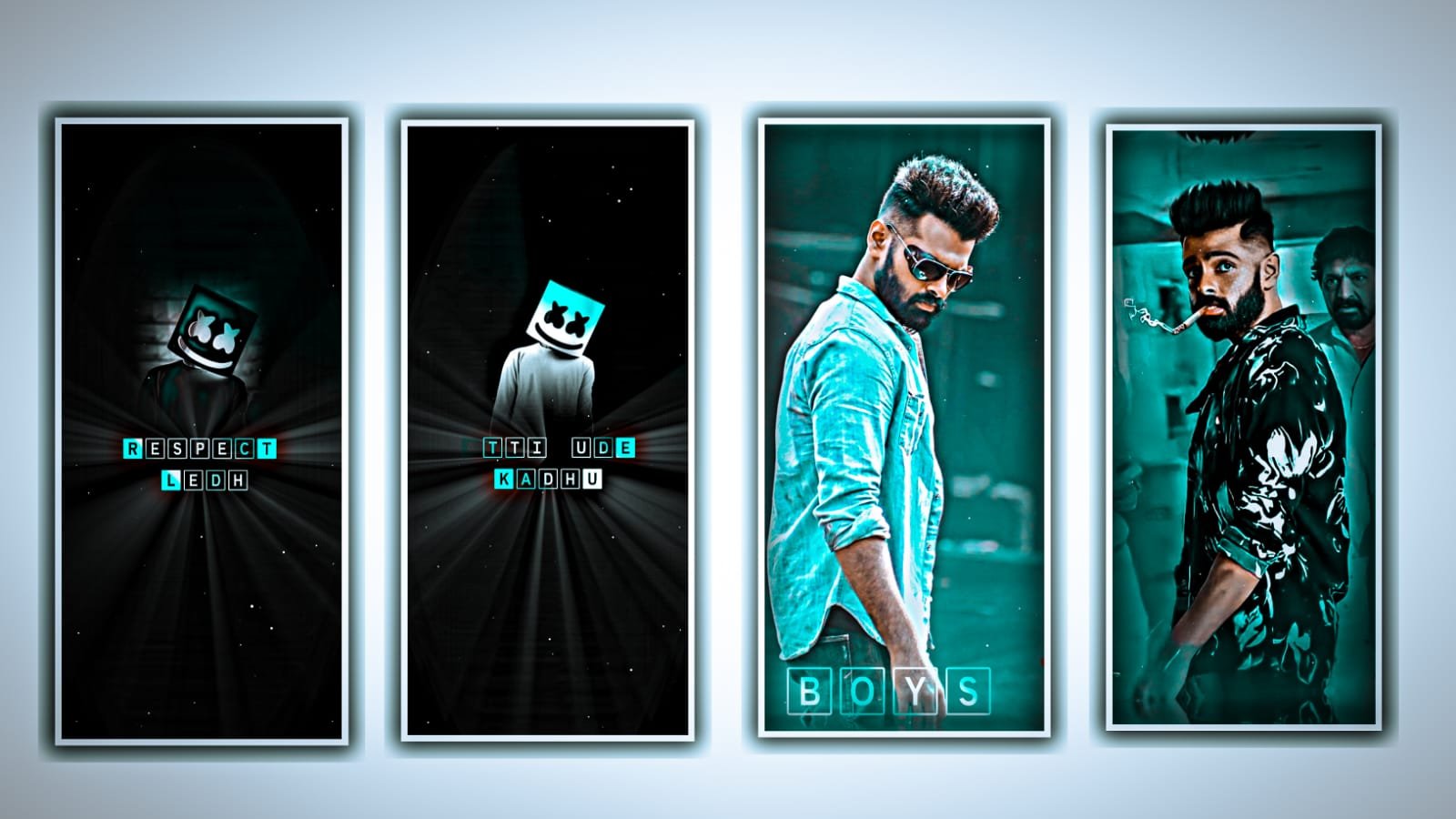
In this project I will explain about New CC effect video editing by using alight motion application. Please follow the instructions and then you can understand how to edit this project and you can also create the same with different videos.
Open Alight motion application and click on plus icon and select the option 4:5 and keep the background colour as Black. And click on create project to continue the process of editing. After that we need to add the video for this for that click on image and video and select the option view all and select the video which you want to edit and select the video and click on us icon to add. After adding the video click on move and transform and adjust the video with your fingertips after that add the video upto 30 seconds and remaining part can be trim. After that click on plus icon to add the rectangular box.
And click on move and transform and increase the size with your fingertips. And now we can add the effect for this project for that click on add effects and select the effect copy background with standard settings. And again click on add effects and select the effect channel remap with standard settings.
After that Click on add effects and select the effect hue shift with standard settings and adjust the colour and keep it as 3.33, and again add another effect select the effect exposure / Gamma with standard settings and select exposure and keep it as 0.28, and select gamma and keep it as 0.760, and now close the effect and again click on add effects and select the effect saturation / vibrances with standard settings.
And now open settings and select saturation and keep it as 23.5, close it after that we can add a rectangular box and increase the size with your fingertips and come back to starting a d select the option add effects and add the effect wipe with standard settings and select wipe and keep it as 100. And select end and keep it as 100. And select feather=50.1.
after that click con colour and field after that I will give you a light video in description please download it from description and add it to this project after that click on blending and opecity and select lightern keep the screen on and add a duplicate layer and drag the light to right side. After that adjust them with your fingertips.
Now play the song and see the effects and then we can add another effects which is nothing but same effect and paste it to remaining layers. Now the editing process will be completed hope you are understanding how to edit this project now click on export icon and export the video with high quality and it may take some time to process and then automatically added to your gallery. So guys please support us by visiting our website you support will help us alot and same support can be continue in future Thankyou.
All Materials Links :-
►Kinemastar Preset Link 👇
DOWNLOAD NOW
►Beat Mark project preset :
DOWNLOAD NOW
►Beat Mark XML file LINK :-
DOWNLOAD NOW
►Shake effect Preset LINK 👇
DOWNLOAD NOW
►Shake effect XML LINK 👇
DOWNLOAD NOW
► Video All photo LINK👇
DOWNLOAD NOW
► Song Download Link 🔗
DOWNLOAD NOW


















Post Comment