Instag Trending Voice Kaadhal En Kaviye video editing in alight motion lyrical video editing 25sep1
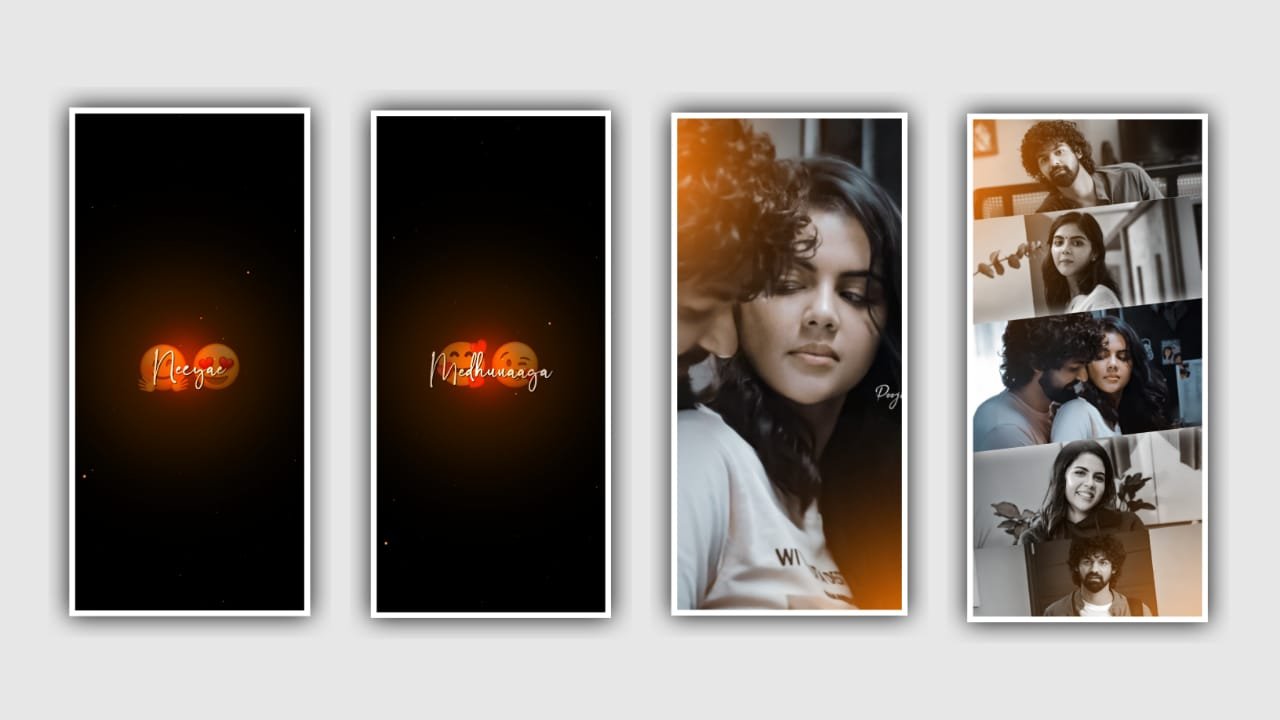
In this project I will explain about trending lyrical video editing in black screen effect by using alight application. Open alight motion application click on plus icon and select the ratio which you want to edit in this project or otherwise select the ratio 9:16 is perfect ratio and click on it and keep the background colour as Black and click on create project to continue the editing process of this project.
After that we need to add the audio for this project for that click on audio I’m select the option view all and select this song which you want to be edit for this project can be download it from any browser and add the song by using plus icon.
After that we need to add the image and for that click on image and video and select the image which you want to edit select by clicking plus icon for this project. After adding the image click on image layer and select the option three dots and keep the image into full screen after that drag the image layer upto 30 seconds.
After that click on audio layer and keep the audio up to 30 seconds and remaining unnecessary part can be delete. After that we need to add the lyrics for this project for that download the lyrics and add the lyrics into notepad.
Now go back to notepad and copy the lyrics from notepad and paste the same into by clicking Text layer and paste them. After that Click on roboto regular and select the font and increase the size 18pt to 28pt and add the colour which you prefer and there are several colours can be in visible. After that process drag the lyrical layer upto 30 seconds and make them into particles by splitting the first layer.
After that go back to notepad and copy the continuous lyrics and paste into the splitted layer. And the same process will be continued for the remaining lyrics which you can add from notepad. And same process can be continued for remaining lyrics to add into this project.
After that click on move on transfer and adjust the lyrics and keep the alignment with moving your finger trips and make it into middle. It will applicable for each and every layer which is added in this project. After that we need to add the effects for this lyrics and that click on effects and select exposure Gama with standard settings and select exposure and keep it as 0.72, and select gamma and keep it as 1.234, select offset and keep it as 0.28, select another effect highlights and shadows with standard settings and select highlights= 164%, shadow=183%.
Click on export icon and export the video with high quality resolution to view the video in detail. Hope you guys will understand how to process this project guys I am requesting you please support us your support will make us to improve a lot. Hope you guys will understand and keep the same support in future to create more editing tutorials like this project thank you.
All Materials Links :-
►Kinemaster PresstLink 👇
DOWNLOAD NOW
►Beat Mark project preset 1 :
DOWNLOAD NOW
►Beat Mark project preset 2 :
DOWNLOAD NOW
►Beat Mark Xml file Link 1 :-
DOWNLOAD NOW
►Beat Mark Xml file Link 2 :-
DOWNLOAD NOW
►Shake effect Preset LINK 👇
DOWNLOAD NOW
►Shake effect XML LINK 👇
DOWNLOAD NOW
► Video All photo LINK 👇
DOWNLOAD NOW
► Video All photo LINK 2 👇
DOWNLOAD NOW
► Song Download Link 🔗
DOWNLOAD NOW


















Post Comment