Alight Motion Next Level Video Editing in trending attitude status editing 24oct3
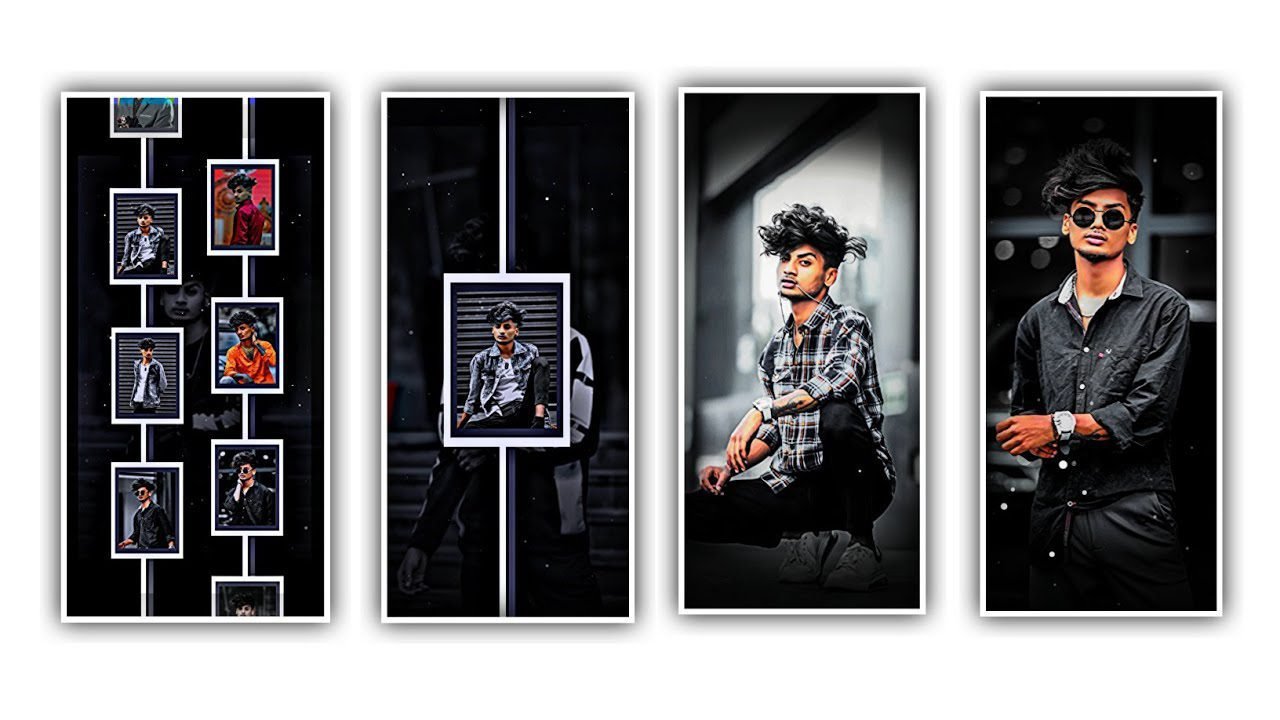
We are explained about the lyrical editing so Please follow the instructions then you can understand how to do edit this project. After that open alight motion and click on plus icon and and select the ratio which you prefer to edit.
And choose the background as black and then click on frame rate as 60fps and click on create project to edit this project. After that click on plus icon to add the text into this project for that process click on text option add the lyrics.
Before you adding the lyrics you want to save the lyrics in notepad and it will be download from browser. Now option the notepad and copy the lyrics from notepad to paste the lyrics in the project by clicking edit text to add the lyrics into text layer.
And if the the lyrics in lengthy then cut off and add the lyrics into another layer by split the first layer to paste the copied lyrics. Then click on roboto regular and click on view all. I will give you the font in description please download it and add into this project. And select the colour for the font and click on right click.
Then simply click on move and transform to zoom the given lyrics. And add the Audio for this project. For that click on plus icon and and select the audio and click on view all to add. And I will given audio link in description please download it.
And the click on plus icon to add. And come back to starting and make a duplicate layer. After that click on edit text to add the lyrics and it is large then cut the lyrics from there and adjust it with your fingertips.
After that click on plus icon to choose the letter in capital and click on roboto regular there is an amazing font called as leaves. And font link will be provided in description download it. And select the colour what you prefer. And increase the size as 18pt and keep it as 70pt.
After that select the rotate option to adjust perfectly after that we want to keep them as duplicate layer then you can drag it and now choose to rotate option and the adjust with your fingertips and now select the all lyrics layers and click on group if you want to increase the size to adjust it otherwise don’t want to adjust and copy the layer and paste the layers before click on first lyrics.
Click on effects to choose the option add effects and there is an effect steps with select standard settings after that there is count option to adjust it as 1.06 and width 0.63, Angle 60°, click on fase and add a key frame to it. And then go to ending to add key frame.
And selected colour what you prefer and go down there is an option smoothing increase up to 179. And select the black for appearing in background. The effect is added. And again for to select the another lyrics and click on add effects and choose the effect text spacing and adjust it.
So the editing is completed. Hope you guys will like this editing to try with your photos. Please support us by visiting our website to create more trending projects like this editing process. In future we are ready to explain the best content in future, thankyou.
All Materials Links :-
►Kinemaster Preset Link 👇
DOWNLOAD
►Beat Mark project preset :
DOWNLOAD
►Beat Mark Xml file Link :-
DOWNLOAD
►Shake effect Preset LINK 👇
DOWNLOAD
►Shake effect XML LINK 👇
DOWNLOAD
► Song Download Link 🔗
DOWNLOAD


















Post Comment