👌New Alight motion Next Level Dj Remix video editing in Instag Trending video editing 4nov2
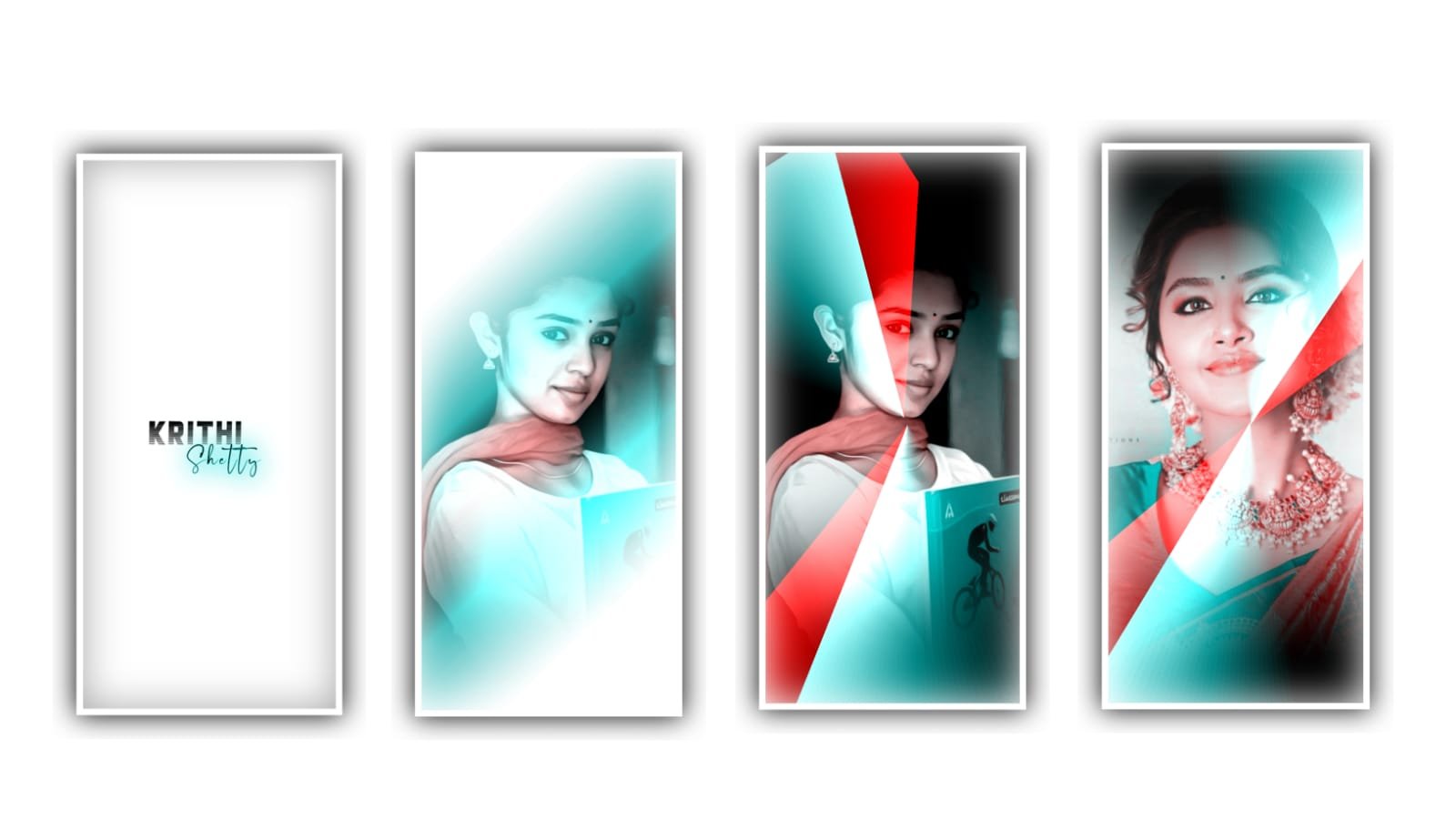
Hi friends in this project I will explain about best ever trending lyrical video editing in this project so please follow the instructions to understand this process to edit and we can use the alight motion application to process this project.
Open choose motion application click on plus icon to choose the option screen ratio and keep the screen ratio as 4:5 and keep the background colour is black and give the bitrate as high and click on create project to continue the trending project process.
After that we need to add audio for this project for that you need to choose the audio which you added for this project which is in your mind to edit in this project click on audio option to select the song into this project by clicking plus icon and it will be selected by gallery to add into this project.
After that you need to decrease the length of the song and keep it as only 30 seconds for edit this project. After adding the song you need to add the image for this project and the imaging can be provided in description please have a look on it to download the image and add into this project.
After adding the image you need to drag the image layer as 30 seconds upto the song ending and not tap on the image and click on three dots to zoom the image. Now see the song and image which is processed into this project. After that we need to add the lyrics according to the image and the selection of the song. You have to add the lyrics to notepad to edit before in this project.
After that you must play the song for an idea to add the lyrics into creating the project. Now go click on text option to choose edit text and make a text layer. Now copy the lyrics and same can be add into this text layer.
And after that process add the font for the added lyrics. Which is available in Roboto regular option to choose the font that you like to process. And increase the size of the font and keep the colour which you like to edit process.
After that you add the effects to the said project to choose text transform with standard settings and select Start and add a key frame in starting and keep is as 0.00 and add another key frame in middle and keep it as 98%. And scroll down and select the option component.
And select the angle and keep it as -140, and keep scale as 1.30 and keep overlap and keep it as Full. After that come back to starting and now we can add the effects for the said project click on effects and select option add effect directional blur option with standard settings.
And add a key frame in starting and keep as 0.00 add another key frame in middle and keep as 78% and select the strength as as zero and select the curve and adjust the curve with your fingertips
The editing process can also completed hope you guys will process this project to edit them into your content. Hope you guys like the project and now play song to see effects click on export icon to export this project with high quality to process this project and add into your gallery.
After that before adding second video we can add another some photos with small duration and now add the second video which is edited in previously. And delete speed adjustment with your fingertips. Now the process of editing will be completed. Now click on save export icon and save the video with high quality.
Hope you guys will like and understand this project and you can also try this video with your own photos and it is the perfect beat sync effect to edit. Please support us because it will gives us encouragement for us for further editings totorials Thankyou.
All Materials Links :-
►Kinemaster Preset Link 👇
DOWNLOAD
►Beat Mark project preset :
DOWNLOAD
►Beat Mark Xml file Link :-
DOWNLOAD
►Shake effect Preset LINK 👇
DOWNLOAD
►Shake effect XML LINK 👇
DOWNLOAD
► Song Download Link 🔗
DOWNLOAD


















Post Comment