Full Screen 3D Natural video editing in alight motion Instagram trending video editing 6nov1
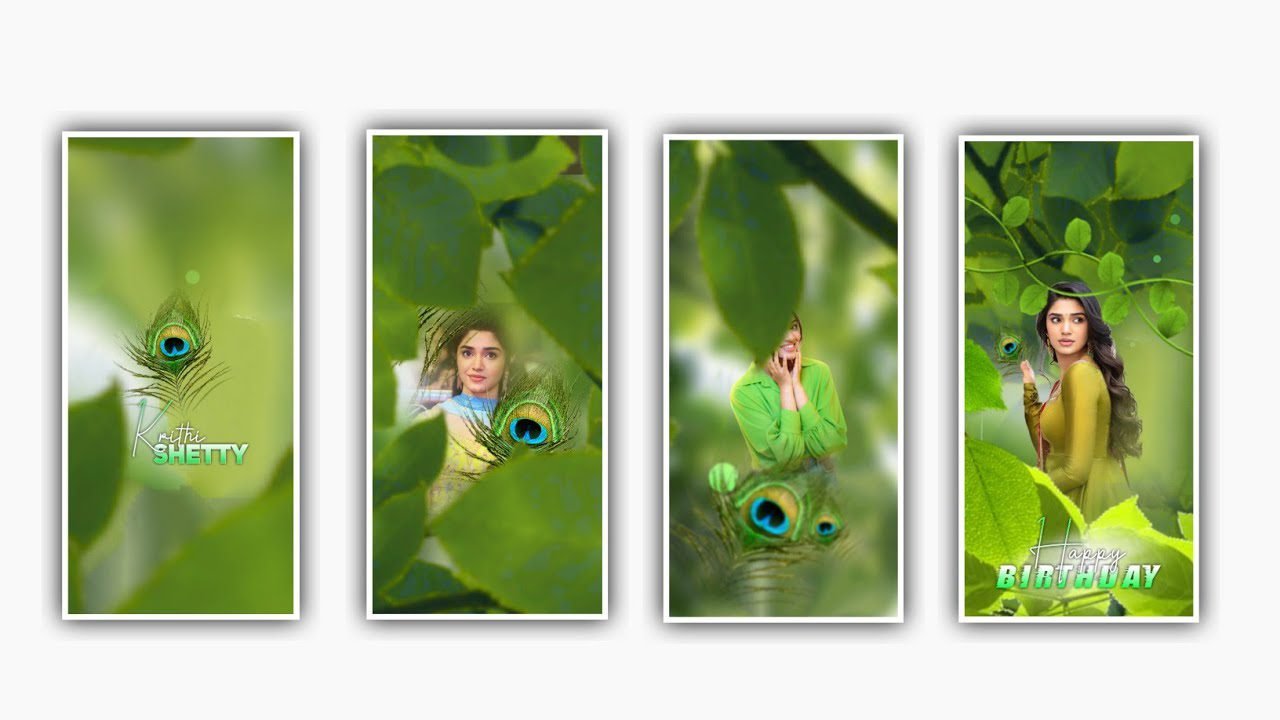
In this video I will explain about black screen effect by using alight motion application with various fonts. Open alight motion application click on plus icon and select the ratio 4:5 and click on create project to continue the process of editing.
After that click on audio and select the option view all and select the song which you want to add in this project to edit click on the song and click on plus icon to add the song into this project.
After that we need to add lyrics for this project for that previously I will add the lyrics into notepad now click on notepad and copy the lyrics from there and come back to this project and click on edit text and paste the copied lyrics into this project after that select the font which is given in description and select the same font to add.
After that click on 18pt and adjust the font size and keep it as 20pt. And add the font colour as white. After that we need to add the effects for the lyrics and click on add effects and select the effect text transform with standard settings and keep the letter spacing as 8%.
After that click on move and transform and keep the alignment into middle. And zoom the lyrics by using move and transform and adjust the lyrics with your fingertips. After that come back to starting and select the first layer and make it as duplicate.
And now click on duplicate layer and click on text layer and now go back to notepad and copy the lyrics from notepad and come back to this project and said the duplicate layer and paste lyrics into the layer. After that again click on second layer and make it as duplicate and the same process will be continued for remaining lyrics. After that click on effects and select the option add effects and select the effect before that play the song and see the lyrics layer and trim if any extra part can be in visible.
Now select the effect stripes with standard settings and select count =0.05, width=0.50, angle=45°, and select phase and add a key frame in middle and before ending. And select the colour stripes as white. And select smoothing and keep it as 0.100, after that click on first above layer effects and paste it to remaining above layers. And now come back to starting and select first Below layer and add the same effect and now select the effect strips and change colour as sky blue.
And paste the copied layer into remaining lyric layers. Now the process of editing will be completed. Click on export icon and export the video with high resolution and click on export button. It will take some time to process and automatically saved to your gallery.
Hope you guys will understand how to edit this project. Guys I am requesting you that please support our website by visiting our website. Your support will help us alot and to think different to create new editing projects in alight motion. Thank you for your support and keep the same support in future.
All Materials Links :-
► Full Presets LINK :-
DOWNLOAD
►Full XML file LINK :-
DOWNLOAD
►Png Preset LINK 👇
DOWNLOAD
►Png effect XML LINK 👇
DOWNLOAD
► Video All photo LINK👇
DOWNLOAD
► Song Download Link 🔗
DOWNLOAD


















Post Comment