Trending love lyrical video editing in alight motion 10nov3
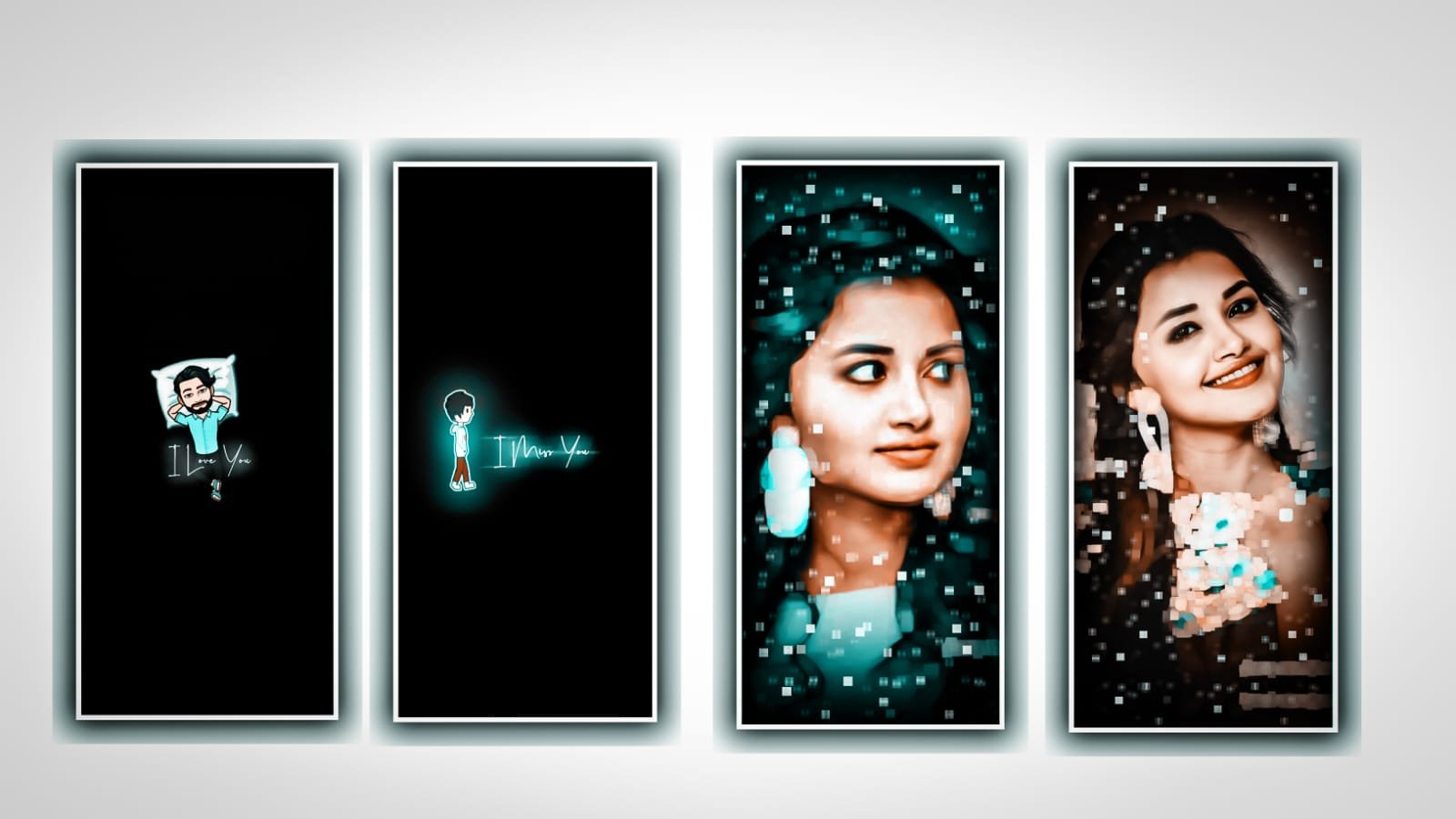
Hello visitors In this project I can explain about best colourful video with full screen CC effect can be configured in alight motion application. Open alight motion application click on plus icon to choose the screen ratio as default and keep it as 1080p X 2340 and keep the background colour as Black and click on create project for editing the process of this project.
After that we need to add the video which you like to process to edit for this project for that click on image and video to choose the option view all and choose video which you might yo be edit in this project and click on plus icon to add into this project.
After that process zoom the video with your fingertips using the option move and transform. After that you need to add the square symbol to this project after that click on move and transform to zoom the square symbol into full screen.
After that we need to add the lyrics to this project for that click on text layer and choose the option edit text. After that previously you can add the lyrics into notepad and to copy the lyrics from notepad and flip back to this project and paste the copied lyrics into this text layer.
After that again flip back to starting and copy the remaining lyrics to paste remaining lyrics which is added in this project. After that play the song to see the lyrics which is upcoming there you want to add the Lyrics. And the same process of editing will be customised for remaining lyrics.
After that click on move and transform to arranging the lyrics with your fingertips. And now you can add the font for the lyrics for that click on roboto regular and choose the font which is given in description and add it and choose the colour as white.
After that you must choose to add the effects for this project for that click on video layer and choose the option to add effect and to choose the option effect copy background with standard settings. After that again you must add the following effect for this project after that click on add effects to choose effect sharpen with standard settings.
After that again we can process to add the effects for that project for that click on add effect to choose the effect saturation/ vibrances with standard settings and choose the saturation as 1.46 and choose vibrances and keep it as 1.68, now again click on the effects and choose the effect brightness / contrast and select the brightness and keep it as +6% and choose contrast and keep it as+9%.
Click on add effects and choose the effect gaussian blur with standard settings and decrease upto 0.00, Click on add effects and choose the effect exposure / Gama with standard settings exposure and keep it as -67 and keep gamma as 94%. After that again add rectangle and click on move and transform for adjusting the lyrics.
Now the process of editing may be completed. Hope you are understand that how to process this project. Click on export icon to export this project video with high quality resolution. So guys we are requesting you that please support us by visiting our website. Your support will helps us a lot to create content based projects by alight motion application in future thankyou.
All Materials Links :-
►Kinemaster Preset Link 👇
DOWNLOAD
►Beat Mark project preset :
DOWNLOAD
►Beat Mark Xml file Link :-
DOWNLOAD
►Shake effect Preset LINK 👇
DOWNLOAD
►Shake effect XML LINK 👇
DOWNLOAD
► Video All photo LINK 👇
DOWNLOAD
DOWNLOAD
DOWNLOAD
► Song Download Link 🔗
DOWNLOAD


















Post Comment