🔥Twitter Trending New Mass Attitude Video Editing in Alight Motion Shake effect Video Editing 13nov1
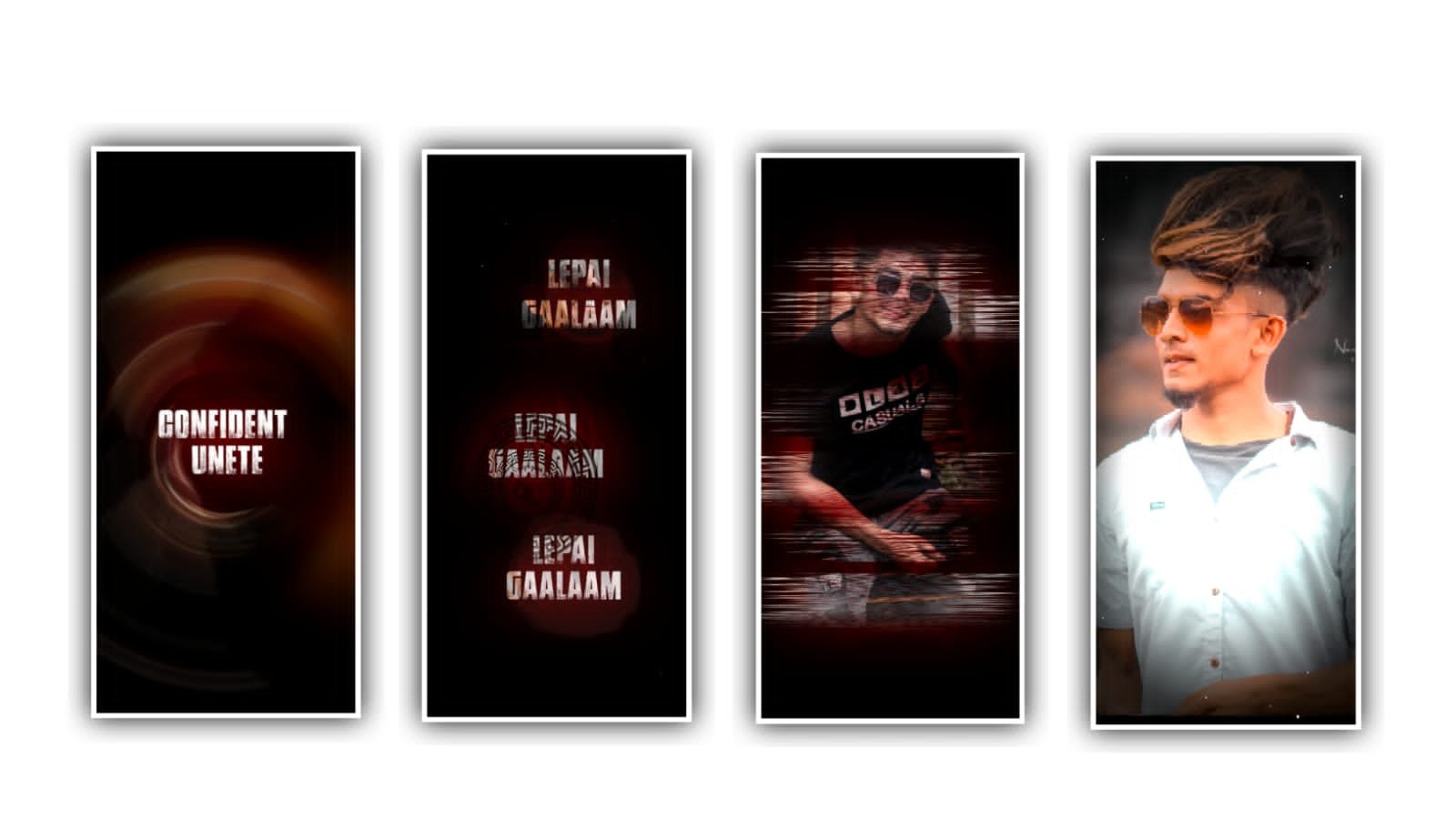
Hi viewers in this project we are explaining about trending shake effect video by using alight motion application. Now open alight motion application and click on plus icon and choose the screen ratio as 9;16 and you must be add background colour as black.
And click on create project to edit this project to process this project. After that click on image and video to choose click on view all for choosing the image which is provided in description please download it from description and choose the option plus icon to add it into this project.
After that click on audio to choose the audio and choose the song to be edit in this project and choose the selective song and click on plus icon to add. After that drag the image and keep the length as 30 seconds and you also drag the song layer upto 30 seconds. Now click on image and choose the three dots and choose the option fill composition area to zoom the image. After that add the lyrics into this project for that you need to add the lyrics previously to add into notepad.
And now go back to notepad and copy the lyrics from notepad to flip back to this project and choose the option text and choose edit text and paste the copied lyrics to this layer and now you can add font for the lyrics for that click on roboto regular to choose the font which is given in description please choose the font and select the font colour as Black and click on right click. After that drag the lyrical layer upto 30 seconds and now listen the song and add the lyrics by listening the song which is added in this project.
After that go back to notepad and copy the lyrics from notepad and flip back to this project to paste the links lyrics and again split the layer and copy the lyrics from notepad and flip back to this project and paste the lyrics and same editing process will be continued for remaining lyrics which you want to add in this project.
After that click on move and transform to adjust the lyrics as a sequential order with you fingertips and keep the alignment in center. After that we need to add effects for this project for that I will provide you a preset link in description please download it to add it into this project.
After that go back to preset and there you can observe one layer in preset choose the layer effects and come back to this project and paste the copied effects to this project by clicking first layer and choose the option add effect to paste the copied effect into this layer.
Now same layer effects can be added to remaining layers which you will add in this project. After that play the project and see the effects wheather the effects is added or not. Now the process of editing will be completed hope you are understand how to process these type of videos by using editing application.
Now we want to export the video for that click on export button to export the video high quality it may take some time to process then automatically added into you gallery. Guys we need your support so please support us by visiting the said website. And keep the same support in future for giving encouragement for us Thankyou.
All Materials Links :-
►Kinemaster Preset Link 👇
DOWNLOAD
►Beat Mark project preset :
DOWNLOAD
►Beat Mark Xml file Link :-
DOWNLOAD
►Shake effect Preset LINK 👇
DOWNLOAD
►Shake effect XML LINK 👇
DOWNLOAD
► Song Download Link 🔗
DOWNLOAD


















Post Comment