Alight Motion New Effect Attitude Status Boys Editing 28nov
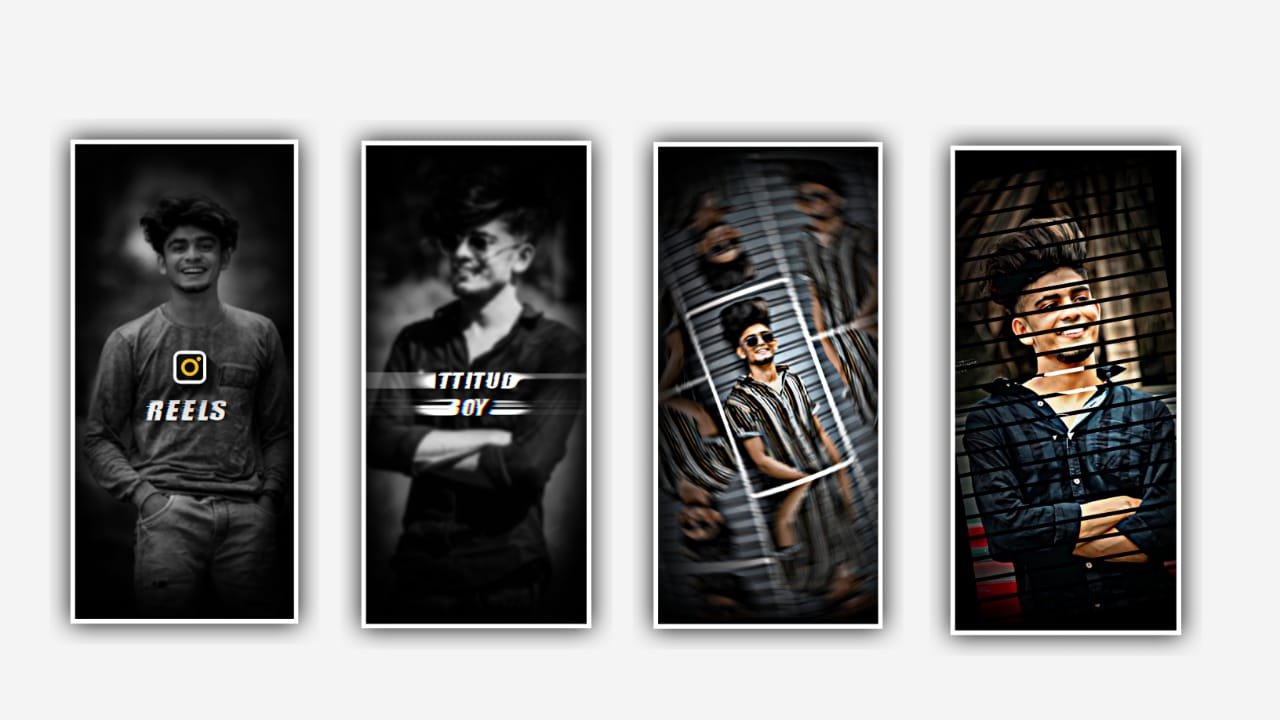
I wil explaining during this project about the simplest black screen Neo effect video editing by using alight motion application so guys please follow the instructions to understand how to edit this project. Option alight motion application then click on plus icon and choose the segment ratio 9:16 and click on background and keep it as Black and frame rate as 60fps and click on create project to continue the process. Now click on the plus icon and choose the choice image and video and select the option view all and select the video and I was given in description please use that video for the remaining process and click on plus icon to add them and intense to forward.
Then select the video and choose the option to extract audio. Now you’ll observe video and audio are often separated now click on video and delete the video. then playing the song is everything is ideal then we can add the lyrics for this project. For that previously you’ll add the lyrics into notepad from we will download it from any browser. Now return to notepad and replica the lyrics from there and come back to this project and paste the lyrics by clicking the text option and selecting the option edit text and placing the lyrics into this layer.
Then click on move and transform and adjust the lyrics together with your fingertips and keep the alignment into the centre. then we’d like to add the font for this project which is given in the description please select the font. then keep the color as gray. then play the song and see where the lyric is coming and stop there and split the layer and replica the lyrics from notepad and paste the lyrics into a split layer. then we’d like to add effect for this project for that click on effects and select the option add effect and select and select text transform with standard settings and select start and add a key frame in starting and keep it as 0.00,
And add another key frame middle and keep it as 92.3%, and choose end and add a key frame and keep it as 0.12, and choose layer option and choose the option component. then click on offset and choose X=-220. Select angle and add a key frame starting and keep it as -145, And add another key frame before ending and keep it as 0.00, and add another key frame ending=+130, and choose alpha = -120. Now play the song and see the results which is added in this project.
Hope you guys will understand the thanks to edit this project. Now click on export icon and export the video with high resolution and it’s visiting take some time to process and added to your gallery.
Guys please support us because your support will give us encouragement to form more editings totorials by using editing applications. i will be able to be able to create more editing projects in future if want to don’t miss the content which is presented in this project. Please visit our website regularly. Thankyou for your support and keep the identical support in future thankyou.
All Meterials Links :-
►Kinemaster Preset Link 👇
DOWNLOAD
►Beat Mark project preset :
DOWNLOAD
►Beat Mark Xml file Link :-
DOWNLOAD
►Shake effect Preset LINK 👇
DOWNLOAD
►Shake effect XML LINK 👇
DOWNLOAD
► Video All photo LINK 👇
DOWNLOAD
► Song Download Link 🔗
DOWNLOAD


















Post Comment