👌New Style Happy Birthday Video Editing in Alight Motion Birthday Video Editing Full screen editing 30dec
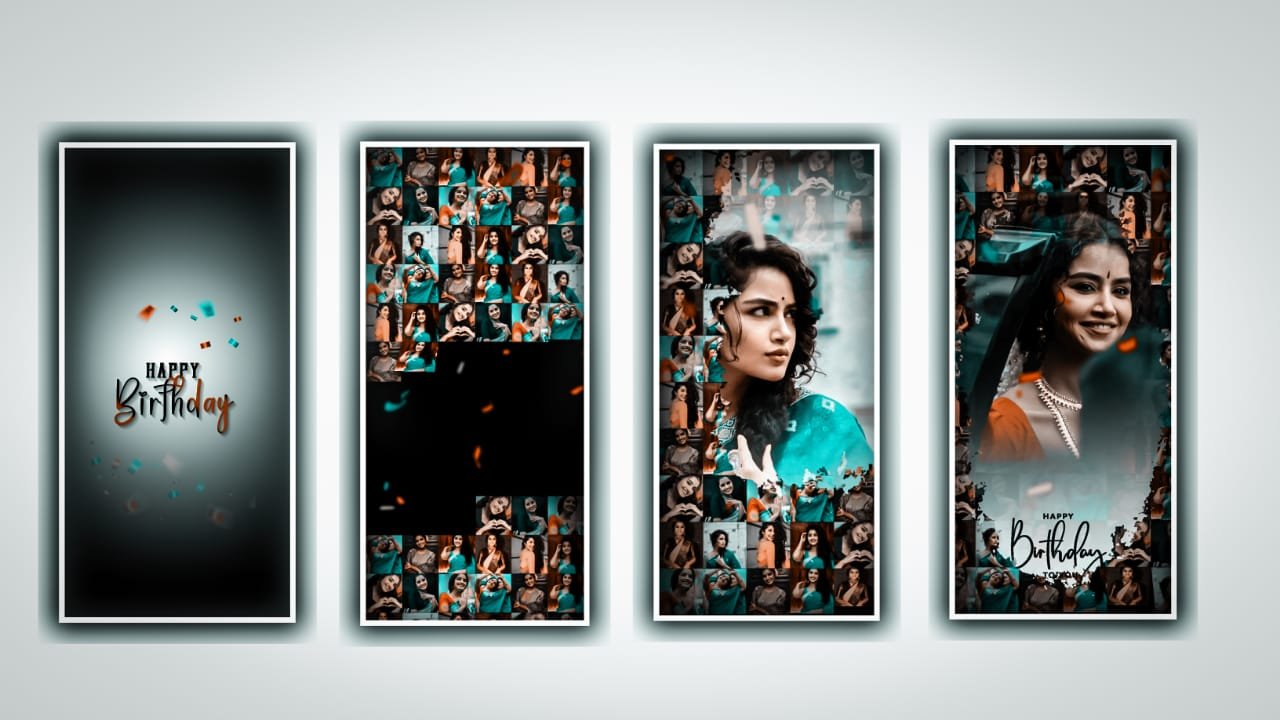
This project I will explain about ink drop splash lyrics reveal video editing by using alight motion application. Open Alight motion application click on plus icon and select the ratio which you prefer and then click on create project to enter into the editing process. After that we need to add image for the said project for the at click on plus icon and select the option image and video and select the option images and click on view all and select the image which you want to edit in this project and click on plus icon to add the image into this project.
And extend image up to 30 seconds and come back to starting and add a song to the project. For that click on plus icon and select the option audio and click on view all and select the song which you want to edit to this project. We can add the lyrics for the project before adding lyrics you can do one thing that is select any browser and copy the lyrics from there and place them into notepad previously. Now open notepad and copy the lyrics from there and paste them into this project by clicking text option and select the option edit text. And keep the alignment in centre and click on roboto regular and select the font which is given in description. And select the colour as Black.
►Kinemastar Preset Link 👇
DOWNLOAD
►Beat Mark Presets LINK :-
DOWNLOAD
►Beat Mark XML file LINK :-
DOWNLOAD
And zoom the lyrics and duplicate the first layer and paste the remaining lyrics to the project. We can add the effect for that click on effects and select the option add effect and select text spacing with standard settings and increase size. And copy the duplicate and paste the lyrics. Now selected 3 layers and select the option copy and lyrics layers split. Now go back to notepad and copy the lyrics from notepad and place them into this project. And the same process will be continued till the end of it. Now adjust the lyrics by using plus. I will give you black colour png to the project and add by clicking plus icon to the project.
Now you can add the effect from the project for that click on add effects and copy the effect limer key with standard settings. And select low and keep it as 0.110.0, and come back to beatmark and select the option blending and opecity and and select the Mask option and click on exclude option and scroll the layer to us. After click on three layer and select the option duplicate layer and go back to notepad and copy the lyrics and paste lyrics to duplicate layer.
► Video All photo LINK👇
DOWNLOAD
DOWNLOAD
DOWNLOAD
DOWNLOAD
DOWNLOAD
DOWNLOAD
DOWNLOAD
► Song Download Link 🔗
DOWNLOAD
Now see the effects this is added to this project. And if there any glitches select the three layers and click on group option in case and effect can be blur then you can add the box blur effect to the project. Now the process of editing will be completed please support us by visiting our website Thankyou for your support continue the same in future. Now click on export button and export the video, Thank you.


















Post Comment