New style trending one side video editing by using Alight motion application 26jan
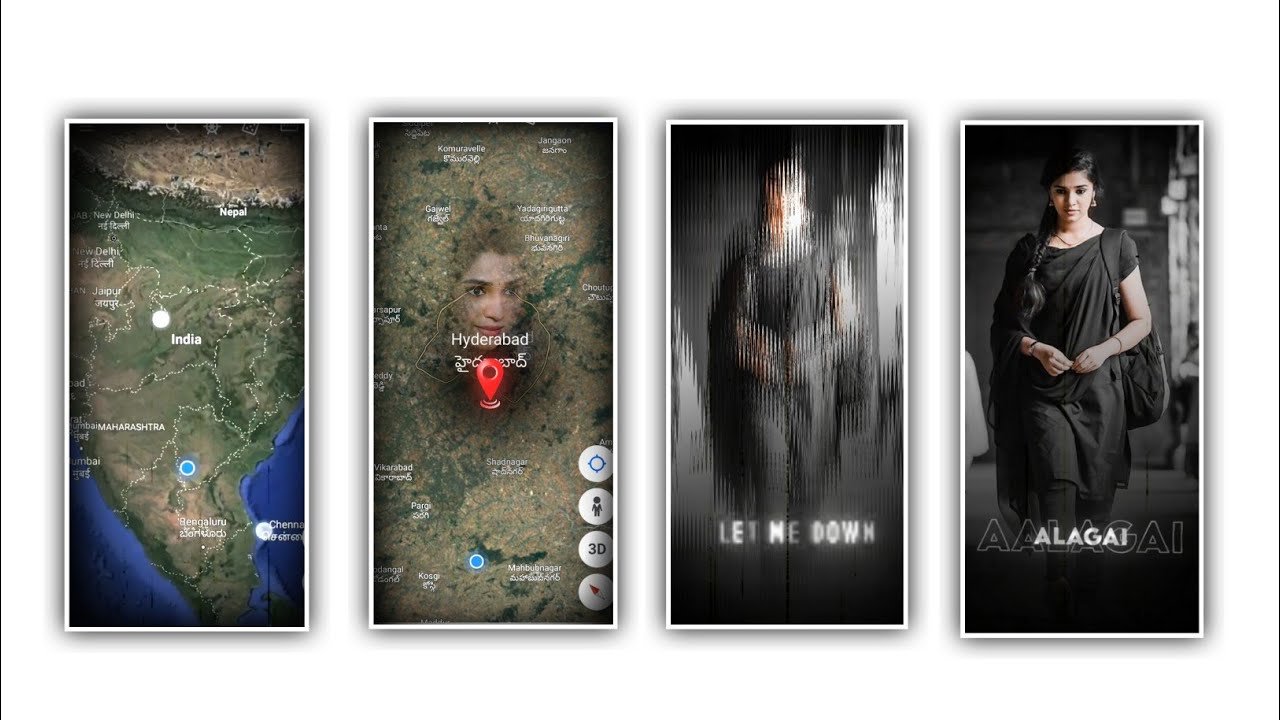
Hi friends, today I am going to tell you about a good editing process, this editing process is something you have never done before, so if you are interested in knowing this process, please read this article till the end to know the complete information. And the editing process of this has to be done by using alight motion application, not only this but this application uses you can know many types of editing process, if not today I will tell you only the editing process.
The editing process that I am going to talk about today is One Side Photo Lyrical Video Editing so this project is very good so you can try this kind of editing with your own images by fully understanding the process of editing. Lets discuss about the editing process. First you open the alight motion application and then you will see plus psycho in the interface by clicking on it and then you will go to the options where you will see some options. The first one is the screen ratio. There you will see many types of screen ratio.
You can select any screen ratio you like, but if you think that you want your editing process to be in full screen, then click on the pencil icon that appears next to it. There you will see 1080×2430. By typing this you will be able to do your editing process in full screen. After that you have to set the frame rate, set the frame rate to 60fps and set the background color to black and then click on Create Project to enter your editing process. Before starting your editing process, you need to download some images from Google and save them to your gallery.
Similarly, if you want to edit the song, you have to download the song, and if you want to edit the lyrics of the song, you have to download it and paste it into notepad. Now you go to the image and video option and you have to enter the images one by one into the project of whatever images you have downloaded, for that you have to tap on each image and click on the plus icon that appears next to it and it will be added to the project. After that you have to tap on each image and you have to adjust and save it so that it comes to one side and then you have to add the song to this project for that you click on your audio option and select the song from your gallery and click on It will be added to the project by just delete the remaining part from that song up to thirty seconds.
After that you have to add the lyrics to this project, for that you have to copy the lyrics in notepad lo and copy them into this project and then click on the text option and click on the edit text option and paste the copied lyrics in it. Similarly, you have to paste and add each and every lyric until your lyrics are complete. After doing that you need to add the font to the lyrics of this song. The font is given in the description of this song. You can download it from there and import it into your project. Then click on each lyric and add the font of this song. Doing so will make your font look very attractive and stylish.
Now you need to add the effects for this project open effects option and choose the effect strips with standard settings and choose count as 0.5%, width as 0.50%, angle as 86.5° , and keep phase as 0.65, and add a colour option and keep Red. And select smoothing and keep it as 0.0666. and keep screen space disable. And add another effect solar assist and keep scale as -38.8%, and choose damping and keep as 0%, and now choose text spacing and keep as 0%, and select line spacing and keep it as 100.0%.
And choose stretch segment and keep angle as 0.0%, stretch as 125%, offset as 8%, smoothing as 0.20. and add another effect RGB split and choose strength as 0.13, and choose angle as 0.0°. Now the effects of this project is completed after that process click on export icon and export the project with high quality and save the project automatically into your gallery. Hope you guys will understand this project of editing process. Many more such useful projects will be informed through your next article, so I sincerely hope that you will visit my website from time to time thankyou.
►Kinemastar Preset Link 👇
DOWNLOAD
►Beat Mark Presets LINK :-
DOWNLOAD
►Beat Mark XML file LINK :-
DOWNLOAD
► Video All photo LINK👇
DOWNLOAD
► Song Download Link 🔗
DOWNLOAD


















Post Comment