Instagram trending new style editing project by using alight motion application. 30jan
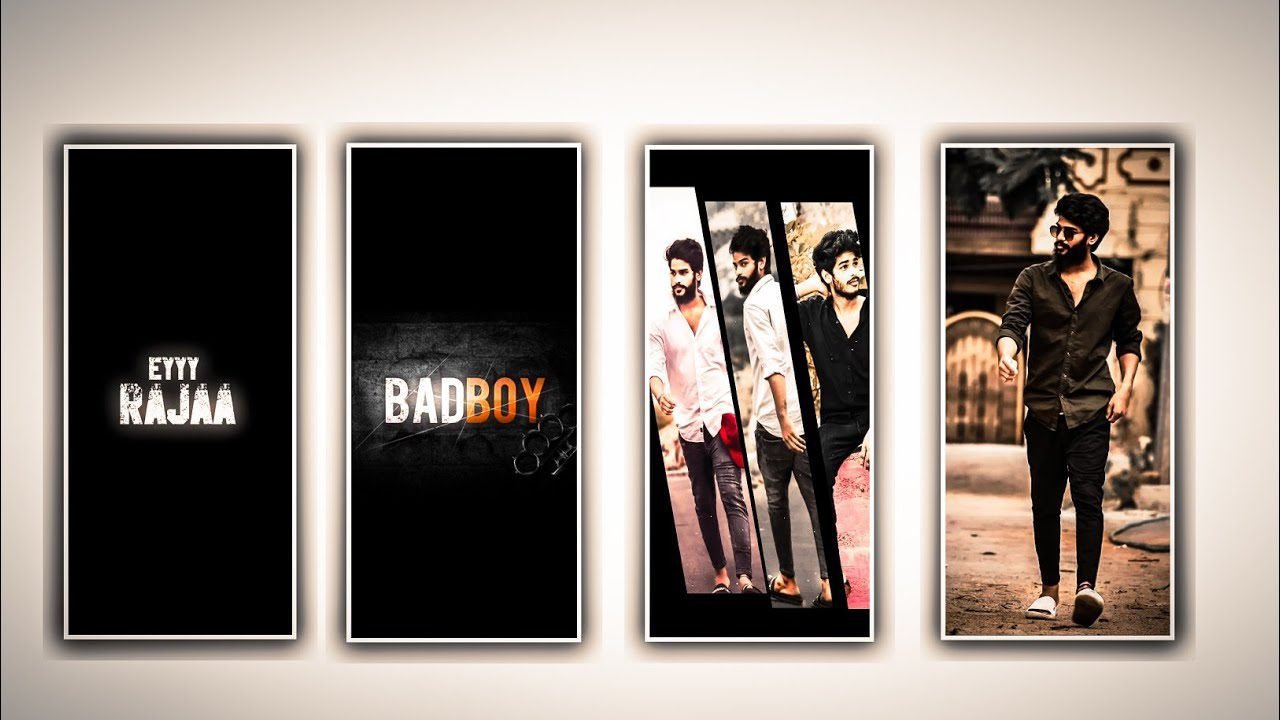
hi friends how are you Today I am going to tell you about a good editing process and many of you are not showing much interest in editing, they prefer to do their own editing. So please read this article till the end and notice what effects I have used and what kind of editing I have done in this article and learn from this article and edit it yourself.
And the application that is useful for us to edit this article is alight motion first open this application then you will see a plus icon click on it there you will see many types of options the first one is screen ratio in it you will notice many types of screen ratios but you will see next to it Click on the plus icon and type 1080×2430. After that it will ask you frame rate where you put 60 fps. After that you will be asked for background color where you should select black then click on create project which appears there and enter your project.
After that, you will see some options, the first thing you have to choose is the audio option. After you select the audio option, you have to add the song of the song you want to edit into the project through your gallery. After that the length of the song should be seen to be only 30 seconds. After that you go to the image and video option and go to your gallery and if you have any images related to Ee’s song in your gallery, tap on the plus icon one by one and add each image into project. Similarly you have to adjust each and every photo correctly.
After that you have to add the lyrics according to the song, for that you have to copy and paste the lyrics of this into the note pad of the previous. After that you click on the text option and click on the edit text option and then you have to copy your lyrics from the note pad and paste it in the text layer. So every single lyric has to be added to this project. After adding that, I will give you the font link in the description of this, so download it from there and import it into this project. Top the imported font on each lyric and add this font to each of them. By doing so your lyrics will become very stylish. After that you need to add effects to this project, for that you click on effects and click on add effects option.
And choose text transform with standard settings and choose start as 0.0%, and choose end as 100%, and select phase as -80.3%. And now add another effect zoom blur with standard settings and choose centre and keep X=0 and Y=0. And select strength as 0.08 and choose another effect exposure and gamma with standard settings and choose exposure as 0.35 and gamma as 1.000, offset as 0.00, and choose pinch bulge with standard settings and choose centre and keep X=0, Y=0 and keep strength as 0.24, and keep radius as 2.500, and choose another effect electric edges with standard settings and choose Distance as 0.317, thickness as 0.836, details as 3.77, distraction as -0.64.
and now keep colour as white. Now the effects can be added in this project and he editing process of this is done so click on export icon and export by exporting in high quality you will get better clarity and it will take some time but it will be automatically saved in your gallery. Have you seen more such editing process with good content in my next article. Also conveying that I sincerely hope for your full support. Thank you.
►Kinemaster Preset Link 👇
DOWNLOAD
►Beat Mark project preset :
DOWNLOAD
►Shake effect Preset LINK 👇
DOWNLOAD
►Beat Mark Xml file Link :-
DOWNLOAD
►Shake effect XML LINK 👇
DOWNLOAD
►Video Photo LINK 👇
DOWNLOAD
► Song Download Link 🔗
DOWNLOAD


















Post Comment