How to edit photo editing by using Snapseed application explained in detail.16may
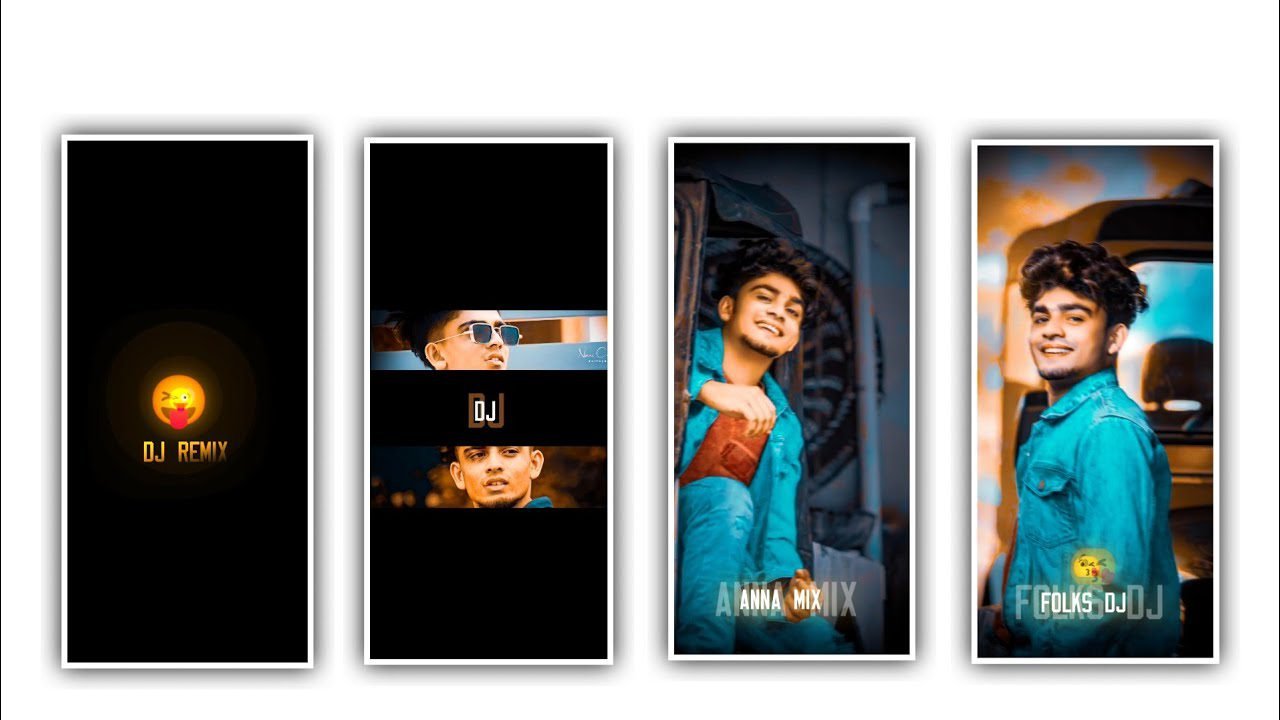
Hi friends today through the article I am going to tell you about photo editing. Photo editing is a small thing but photo editing with many types of effects is to be done. With clear observation the process should be done by providing all the desired effects to your photo. Know about If you want to edit yourself, you can use this Snapseed application to understand that by doing the editing process, your photo will get a rich look and the editing process is a special thing to edit this project. Especially for color corruption these applications are used more because you can use many options like hair color, face brightness and dot sports, you can remove and provide color filters as you like to edit your project very easily and download your image in quality.
I would like to know the editing process. Also many people are commenting that the quality decreases after editing the photo. Why the quality decreases that is by sharing it through any application then the quality will decrease and without the quality degrees, I will also tell you how to send your project and your image with clarity.
First of all we open the Snapseed application after opening it then click on the plus icon of whatever image you want to make into a project. And then add and adjust the image from your gallery. The starting point for us is like in which I will talk about this app as the main feature in this application is Tools There are different types of tools available by using this application. Also I can talk about every single option in the tools, but I will talk about the tools which are useful for our photo. Because photo editing is only by using these tools and we can design our photo attractively and colorfully so I will only talk about them.
The same face should be whitened and any pimples should be removed. Also we need to whiten the face and black the hair. If we use only two options this problem will be solved. The first tool is selective and the second tool is to tune the image by using these options you can edit your hair and your face colour. By using these tools it will automatically tell the editing process.
Also we have different types of options for this application. let’s know about some of them now, there is an option called cropping. why is it useful if unnecessary particles are captured in your image, this crop option is useful, and there is a rotate option, why is the rotate option useful to your image. This option also allows you to rotate up to a total of 360 degrees and adjust with your fingertips. Also if you have any pimples on your face there is a best tool called healing to remove those pimples. Using that tool. It is very useful to remove the pimples wherever you have them.
This option removes the temples for your photo and makes it very smooth. Similarly whatever small water marks you have,
you can remove them through this healing option. Also why Select To is useful is that it is useful to detect your image. This selective option is useful to tell you if there are any unnecessary shadows in your image. Now let us know about the town image. Why this tool is useful for us is that an option is very useful to increase the brightness when the brightness of our photo is low and to add saturation where there is no saturation and also to make our image attractive by providing the desired contrast.
By clicking on the tune option, if your face is very black color l Then you can adjust the color and reduce the white color coating to your face, just by using this option. And you can adjust it. By completely adding the white color will naturally add to your photo. If you have given all the options that you want to give to this image like suduction brightness etc. then your image will not be in quality if your editing process is not complete. By doing auto adjustment I will increase the quality of the edited photo as a project.
Now simply open the Remini application this application is very useful for us in this we don’t need to use any option because just by adding the image you want to edit in the project it is very easy to increase your image sender so that you can click on the plus icon and go to Images. Then go to the option and import the image from your gallery that you are already editing into this project. After that importing that image now then simply click on continue. It will process and design your photo in a clear way. After the process is completed, you can see your image with good quality and before after the option is also in this option, so you can do the option of how it was before editing and how the quality has increased after editing in this project.
In this way you can mix your editing and download your photo with good clarity and I think everyone will understand this and also if you want to edit your photo as you like then definitely use these applications because you will get good result I always Also, while talking about the process, I will check if the process I am telling is useful for everyone and only then I will say it if I feel it is useful for every person.
And I hope that you will fully understand the editing process of this, I hope that you will edit your own image in the same process that I have said. And again I will come to you again with a creative project for you through another interesting editing content. I will also try to make it understandable through the next article until then I hope you will visit my website thankyou.
►Kinemaster Preset Link 👇
DOWNLOAD
►Beat Mark project preset :
DOWNLOAD
►Shake effect Preset LINK 👇
DOWNLOAD
►Beat Mark Xml file Link :-
DOWNLOAD
►Shake effect XML LINK 👇
DOWNLOAD
►Video Photo LINK 👇
DOWNLOAD
► Song Download Link 🔗
DOWNLOAD


















Post Comment