Vinayaka chavithi banner editing by using editing 6789
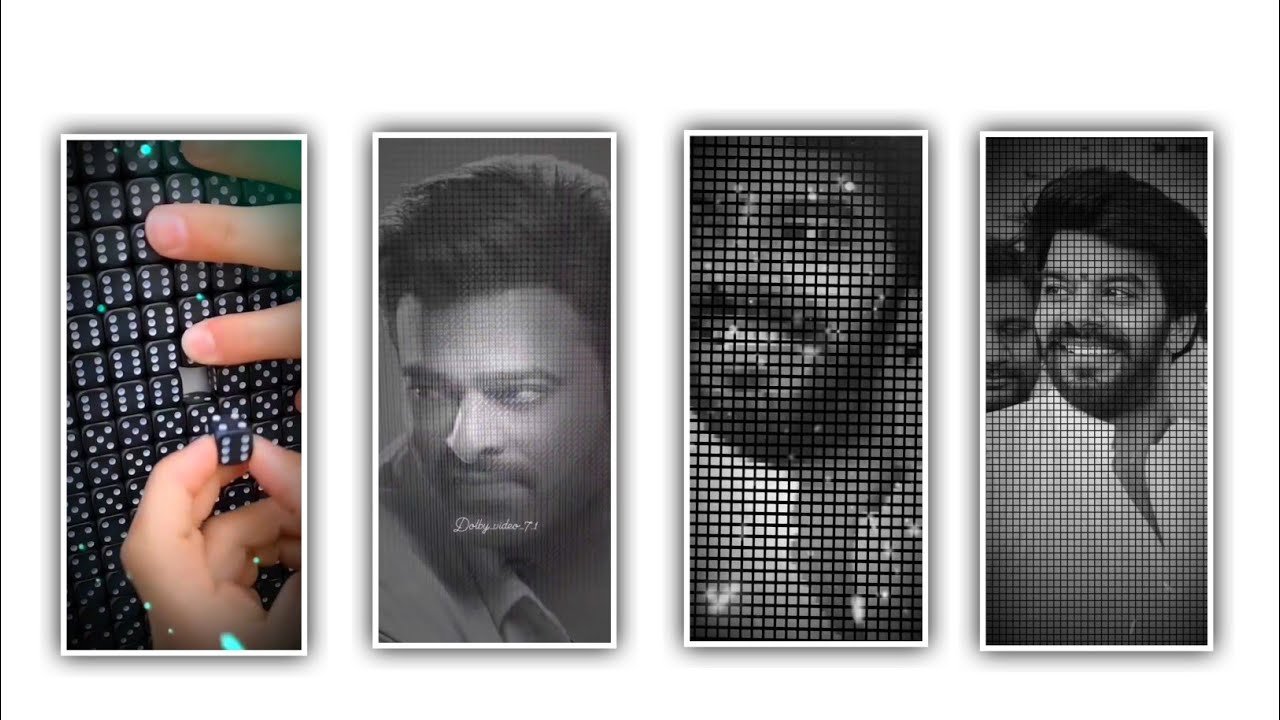
Hi friends in this project we are explaining the editing banner for the Vinayaka chavithi so please follow the basics of understanding the complete editing process then you can also try this complete editing process. For that you need to download the Vinayaka chavithi banner from any browser for the sample then by observing that you need to add the materials as per the banner after clean observation. And this total design can be done in the photo editor application now simply open the photo editor application and click on new and choose the screen resolution as 1:1 ratio and click on continue for the editing project.
Now see the interface from there you can observe the white layer will be useful and available. And there are several options that can be available in the photo editor application and we are designing a banner so you can go back to the layer panel. Now you can add the text and photos below the application there you can observe the text image option and by using the gallery option you can import the image into this project.
Now you can add the background image to this project so you can download the image from any browser and you need to choose before you downloading you can select the HD quality image with the gradient colour image that can be downloaded from the browser. And there is an alternative option to add the same image into your editing application without downloading you need to copy the background image layer and come back to the photo editor application you need to paste the copied image into this project. And turn off the aspect ratio and click on apply to add into this project and adjust the images and you need to add the blue option to the background image it will automatically cover the quality of the image.
After that choose the option radius and increase the percentage then you can observe the following process after that you need to adjust carefully to add as a background and you can also make a lock to the background image then the image will be locked. After that choose and upload the PNG images and per the requirement for that you need to use the browser and search the preferred image as a PNG format.
Now you need to download the HD Ganesh wallpapers from any browser. And now you need to download the best quality image and copy the image then come back to the photo editor application and paste them into the layer. Now choose the option flip symbol to flip the layer into this project and make it to the left side of the project. And you can use several shapes by using the plus icon and choose the option shapes and the shape which you like. I am selecting the rectangular shape from there and adding it to the image and adjusting the image as per the shape.
And there is a hotness option choose the option and increase and decrease the wavelength of the hardness then automatically you can edit the following process and be designed in a smooth version. After that process Now you open alight motion editing application to complete your editing process, after opening you have to select some things, if not I selected 1:1 ratio then after you click on create project you will see an interface to edit. After that you need to change the background and make the background as transparent and click on the shapes option and keep the round rectangular shape from there to add into this project.
After that you click on the move and transform option and if you have a black color background you have to adjust and you also have to design the size and radius there. Similarly if we decrease the length automatically the height will increase. After that you click on the plus icon and click on the media option and go to your gallery and whatever image you want to add to this project. And you have to add that image to this project and set it to full screen. What you will do next is combine the two layers into a single layer and form them under the group.
If you want to go to a group and want to edit the created layer again you will see the option below and click on the group and you can start your editing process again. After that you have to edit the photo in a small size, design your image like a passport size photo and make duplicates of the image and if some images are boxed you have to design the image boxing that you have designed. Before that you have to edit again with another image in the same rain. You also have to save these two layer images to be edited. After saving, you have to go to the previous application to edit.
Now you go to your photo editor application after going to it open whatever party you have already edited in the preview. You have to try that way and you have to report to this project after you have done it you have to add any text for that if you click on the plus icon in above you will see an option called text and click on it you can type the text Happy Vinayaka Chavati or type happy ganesh chaturthi. After that text you have to add the font and multiple colors related to the text and decrease the size of the added text and add it to the project.
You should add text to this project as you like and add color related to the text. After designing, check if your image banner is absolutely perfect. If not you should unlock the layer and edit it properly. After that you check every single thing like Saturation and Color Brightness and your image quality will increase and after that increase you will be ready for your project. And I think every one of you liked this Vinayaka Chavati banner editing so everyone learn this editing process step by step and you can creatively create the design as you like and you can add your favorite colors and make it very attractive if you can.
There is also an option to add your photos in this editing project you can also try that way and whatever editing process you need in the editing process I will tell you immediately so you can follow me on the website and whatever doubts you have in the editing process this project also gives you that. Will clarify for you in the next article Thank you
► Mivi Link 👇
DOWNLOAD
►Full project Presets LINK :-
DOWNLOAD
►Full project XML file LINK :-
DOWNLOAD
► Video All photo LINK👇
DOWNLOAD
► Song Download Link 🔗
DOWNLOAD

















Post Comment