Lyrical video editing in 3D style editing 8137
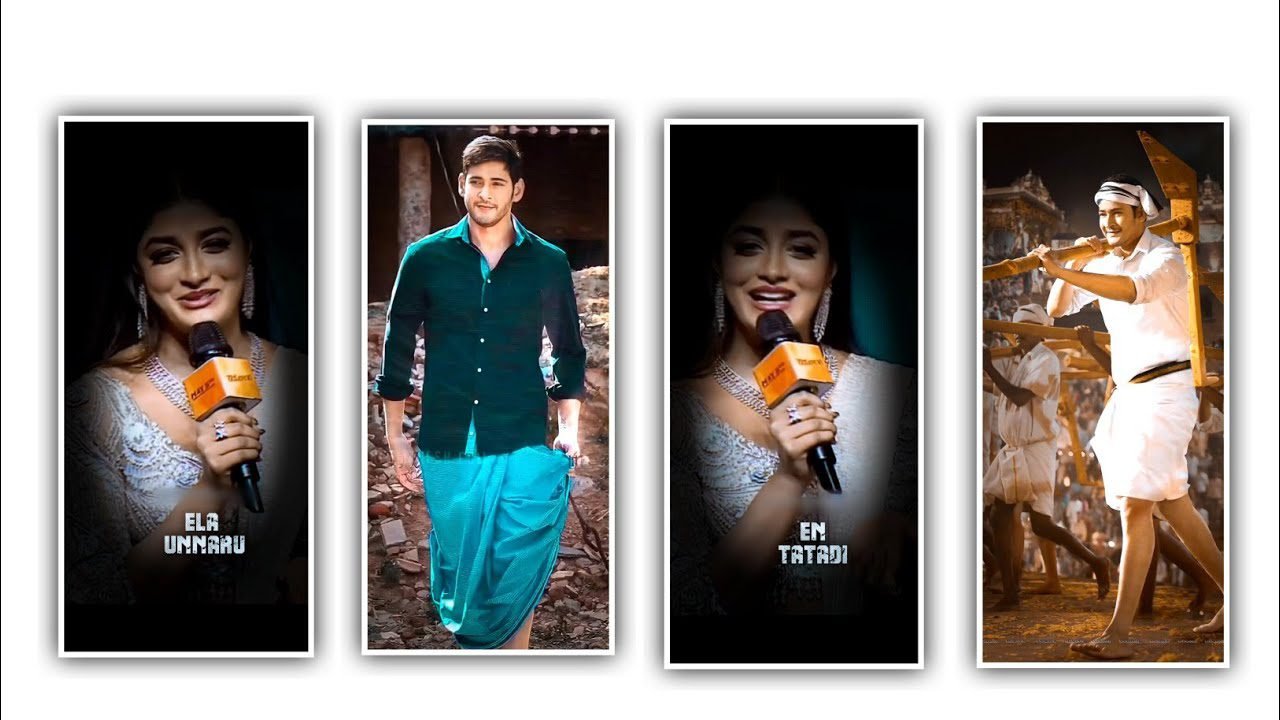
Hi friends how are you doing this optical 3D Alight Motion Editing How to do you have all the options required in the application so that everyone can do this so that every single editing I say is a perfect editing process without any trouble. We have many advantages by using this application because this application we have different types of effects so everyone should be careful before learning this editing process because we need to know first why each option is useful it contains many 3d lyrical and animations so you all can choose what you like. Be selective and learn about this valuable editing process.
For editing process and you need to download this application first, after downloading, open it, when you open Alight Motion application then it will ask you the screen ratio so choose 9:16 ratio and then you will completely understand this editing process very well because it will very attractive. Before that you need to add some images into this project without any background so when you can select the images then can keep them in Background remover application then you can import the images into the application and remove the complete background and save the image in high quality.
Because by doing this all your created images will be converted into PNG format so you can make the editing process very easy. After that you need to open PicsArt application and choose the plus icon and you can select the photo which is in useful for background and now you need to remove the background and choose the remove option. And select the particular image and remove the photo from background and and keep the background and save the image in High quality. And it will takes time to export and now choose the remove option then the details will be covered and save the background image into your gallery.
And now choose the Alight Motion application before that I will provide you two different forms in description. So you can choose it through the link and download it and to this project because with using this fonts we can edit stylish lyrics. And the same time I will also provide you the image link in description so you can also download it through the browser and save into your gallery when it requirements needs to add then you can add the image into this project.
And I will provide you the XML file link in description so choose them to download and add to the project. And now choose the XML file in our description so please tap on in then it will usually and automatically it will be loaded and added into your alight motion and ask you import then choose the option import then it will added to your gallery. After adding this, you will see the next option called Next. After that you will see an option called Continue to main head.and the project will then be automatically loaded and open.
And Similarly if you are not an add on in the XML file you have added and then you can choose the text layer and select the font you have downloaded. And select the font because I have two layers on top of the text so you need to add two different fonts to this project. After that process you need to import the XML file and you can add the same fonts to the remaining text layers. And now we have already edited the images which means we have already removed the background of the photos and also removed the photos from the background.
After that you should first add background image in this project and you have removed any photo and downloaded only the background. And you have to add that image to this project through Picsart editing application, after adding it, put it in the background and click on the three dots and fill composition area. Click on the option and you need to first adjust the background image so that it fills the entire screen and then you can add the images that you have edited into this project by removing the background and just editing them in PNG format. Click and go to the image and video option. After that you will see the gallery option from there you can add PNG images one by one after adding the lyrics and you have the left side, so you have to go to the right side and adjust the image. And click on the transform option by clicking this you can move the image to the right side very easily. After that you have to drag whatever background images and png images you have added to the project to where the reset is in the project.
After that you need to adjust the PNG images so that they come out correctly and then you need to reduce the contrast of the background image because you want the background image to always look blur than the image and then your lyrical project will be very easy. You should try to edit this project in this way because the editing process is not very easy. But every option in it does not mean so easy to us and then you have to give it an animation after you adjusted the process. If you want to add a variety of effects and you can choose from it so you can get a variety of effects.
Have you seen and I hope you like the editing process because this editing process should be understood by everyone. I am just saying that everyone should observe this process carefully. You can edit. Since this is 3d lyrical video editing, you should definitely add everything you need to add to this project. Your valuable support will give me the support because your support is my channel from time to time. I want your valuable support to continue with me. And through another article I will meet you with a good editing process. I will explain everything so that you can fully understand thank you.
►Kinemastar Preset Link 👇
DOWNLOAD
►Beat Mark Presets LINK :-
DOWNLOAD
►Beat Mark XML file LINK :-
DOWNLOAD
►Shake effect Preset LINK 👇
DOWNLOAD
►Shake effect XML LINK 👇
DOWNLOAD
► Video All photo LINK👇
DOWNLOAD
► Song Download Link 🔗
DOWNLOAD


















Post Comment