Best Ganesh Chaturthi Special video editing in alight motion 28aug3
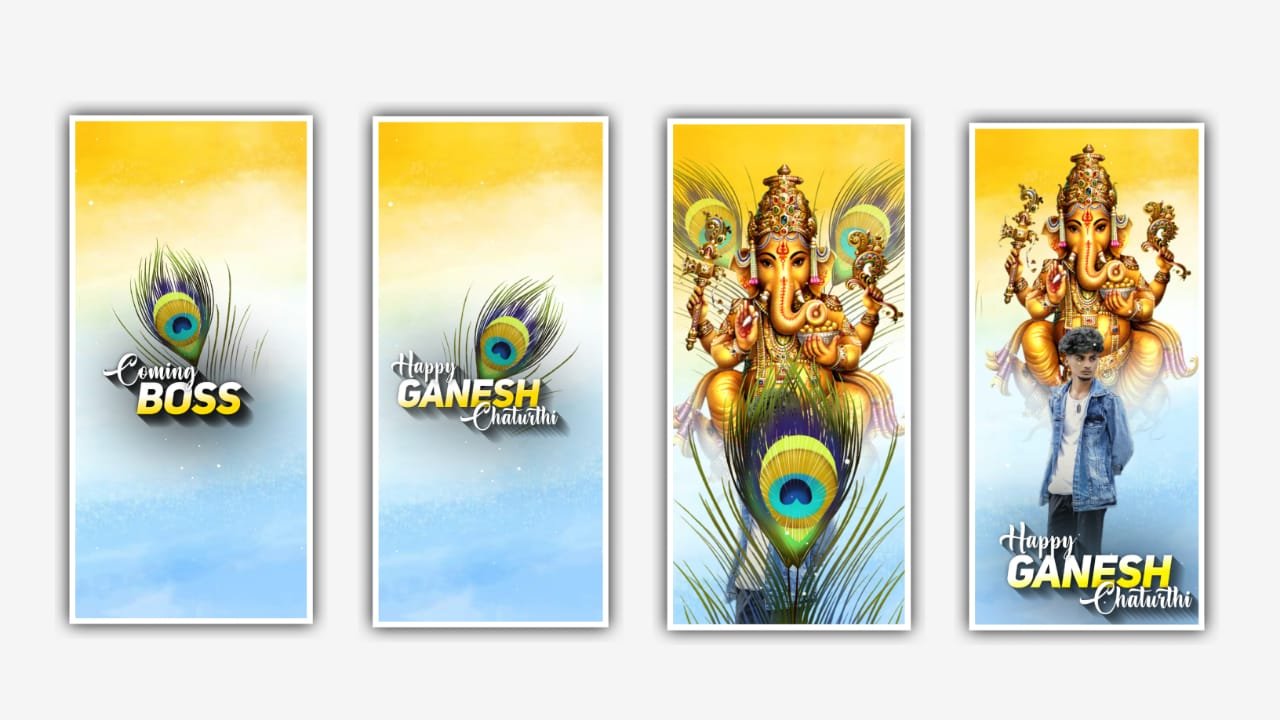
Hi friends in this article I will explain about how to make dual exposure video by using Alight motion application. First of all open alight motion application click on plus icon and select the ratio 4:5 otherwise select the ratio which you prefer here you can observe several ratios in the appearance select one of them.
And keep the background colour as white and click on create project to continue the process of editing. After that click on plus icon and select the option image and video click on view all option and select the image which you want to edit in this project select that picture by clicking plus icon. After that tap on photo and select the option move and transform and adjust and zomm the photo with your fingertips.
After that we want to drag the image upto 30 seconds. After that we want to add a video for the double exposure for that click on image and video and select the option view all and select the video which you want to edit in this project and click on plus icon to add it into this project and after that only 30 seconds video song can be add for this project and remaining part can be trim. After that click on video and select the option move and transform and zoom the video by clicking third option in Move and transform.
After that click on video layer and select the option blending and opecity and select lightern and keep screen on. And now play the song after that we want to add the background image and crop the image in PNG mode. And now select the image and zoom the image by clicking move and transform and now select the image and click on blending and opecity and select lightern and keep the screen on.
Now we can observe the video is in images. Suppose if the video is not appearing in the photo with quality you can also try with another image. Because there is a differenxe form image to image. After that you can select and photo from galary by using image and video and select the image by clicking plus icon.
Now click on the added image and zoom the photo by using move and transform and adjust the image with your fingertips. Now you can play the video and observe the details is in correctly or not. And also you can add the log for the project and zoom the logo with your fingertips and adjust the logo into down.
Now the editing process will be completed so I hope you will understand how to make double exposure video by using alight motion application. So please support us if you like the project and keep support for me because your support will help us to improve and to generate more to do animation projecs in alight motion application.
Now simply click on export icon and select the select with high quality and click on export button and it will take some time to process and automatically downloaded to your gallery. So guys please support us by visiting our website Thankyou.
All Meterials Links :-
►Kinemastar Preset Link 👇
DOWNLOAD NOW
►Full Mark Presets LINK :-
DOWNLOAD NOW
►Full Mark XML file LINK :-
DOWNLOAD NOW
►PNG effect Preset LINK 👇
DOWNLOAD NOW
►PNG effect XML LINK 👇
DOWNLOAD NOW
► Video All photo LINK👇
DOWNLOAD NOW
► Song Download Link 🔗
DOWNLOAD NOW


















Post Comment