Alight Motion Rolax BGM Next Level video editing in Instagram Trending video Tutorial 🔥🔥 13oct3
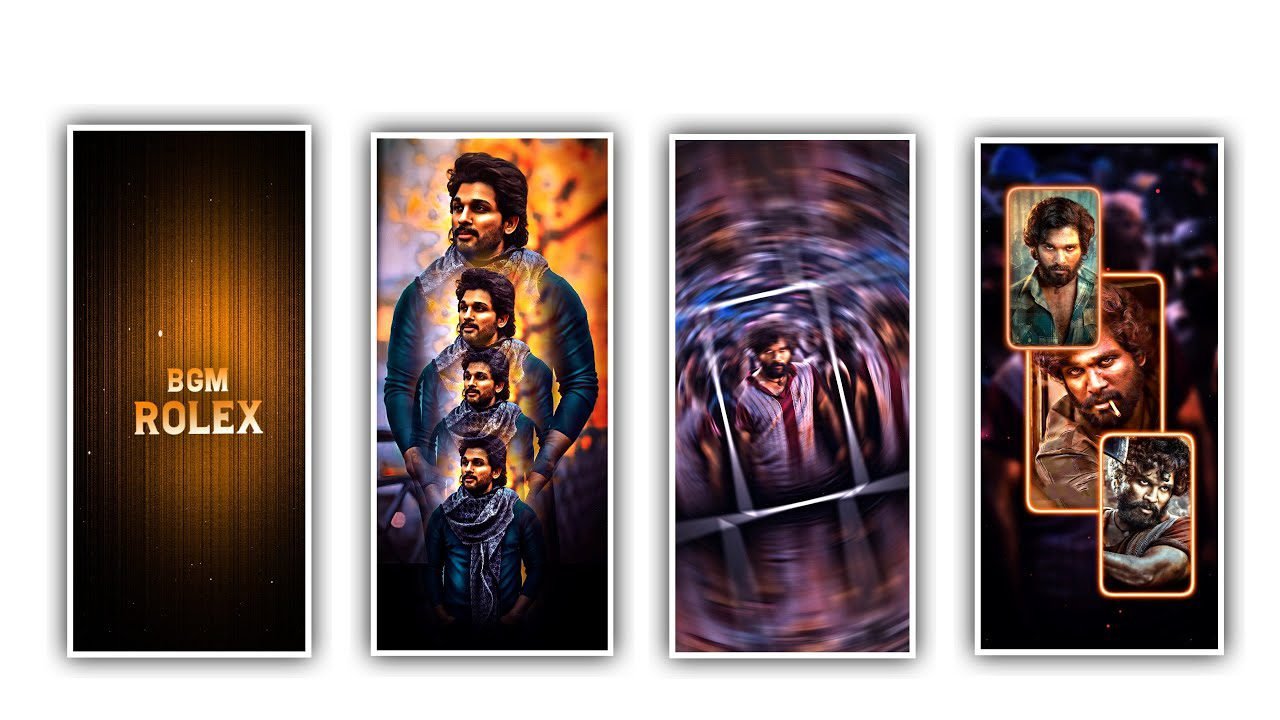
In this project I will explain about moving spring effect video editing by using following instructions which I said in this project please understand carefully then you can also try this with same process to improve you skills in editing.
Now simply open Alight motion application and click on plus icon and select the prefered ratio as 4:5 and now simply click on background colour as black and click on create project to edit the process of editing.
After that I will give you image link in description which is visible into particles like a paper affect image in description please download it from description and into this project by clicking the option image and video and select the option you all select the image into this project for background.
After that we need to add the audio for this project for that click on audio and select the option view all to select the song to everytime this project. Now click on image layer and somewhere and both of them can be keep the seconds and decrease as 0.30 seconds. After the process click on image layer and zoom the layer.
According to the song add the lyrics into this project before editing this project add the concerned lyrics into notepad previously now simply click on edit text and paste the copied lyrics into this text layer. After that’s we need to follow the same and add the lyrics according to the song.
After that at the song layer up to 30 seconds after that play the song and split the layers and make it as 30 seconds. After that we need to add the font which is given in description. After that we need to add the effects for this project for select the option add effect to select swing with standard settings and select the frequency and keep is as 0.87 and select the angle 1 and keep it as 0.29°, and select Angle 2 and keep it as 0.30°, after that adjust the curve with your fingertips.
After that select another effect oscillate with standard settings and select angke and keep it as 0.00°, and select frequency and keep as 3.11Hz, select magnitude and keep it as 120, and select another effect edge shape and keep size as 920.
After adding the effects into this project you can concentrate the video is edited in a proper way or not to contribute another projects and it is very useful project and you cannot add any HD quality image for this project to edit it is a simple way by creating your own thoughts and it is visible as a very good looking so make the same process with your customisation also can be applicable.
Now the process of effects adding is completed click on export icon to export the video with the high quality and lead consumed sometime to process and exported into your gallery. Hope you guys will understand how to edit presentations. Please support us by visiting our website to edit for creating more editing tutorials like this project thankyou..
All Materials Links :-
►Kinemaster Preset Link 👇
DOWNLOAD
►Beat Mark project preset :
DOWNLOAD
►Beat Mark Xml file Link :-
DOWNLOAD
►Shake effect Preset LINK 👇
DOWNLOAD
►Shake effect XML LINK 👇
DOWNLOAD
► Song Download Link 🔗
DOWNLOAD


















Post Comment