Instag Trending Viral I am devil BGM Video Editing in Alight motion 28oct2
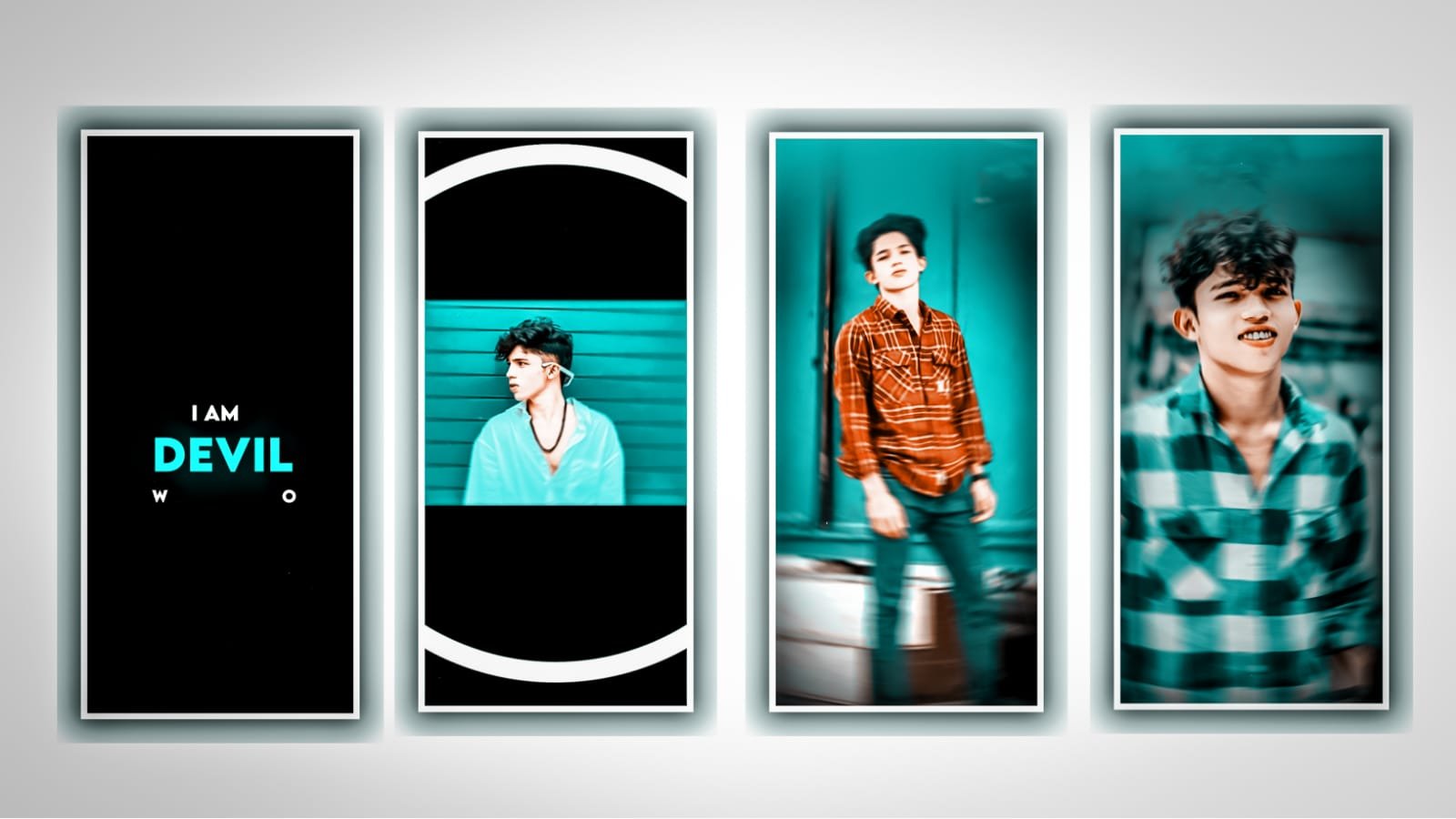
In this project I will explain about moving effect video editing by using editing application Alight motion. Please follow the instructions to learn about this project in detail. Now click on plus icon and select the ratio 1:1 and keep the background colour is black and also choose the frame rate as 60fps to continue the process click on create project for further editing.
After that see the interface and select the option media and select the option image and video to choose the photo from gallery and click on plus icon to add into this project. After that drag the image up to 28 seconds. Now you can add the effect for the image which is moving effect can you observed in this project.
To add the effect click on effects option and to choose the effect move and transform from there you can select swing with standard settings. And there two options can be defined select Angle 1 and keep it as -6, and select Angle 2 and keep as 6,
And choose the option phase and keep it as 1.00 and select frequency and keep it as 0.016, after that zoom the image as full screen. After that we need to add song into this project and you can fix the song previously before editing this project.
Now select the song by using the option audio on selective you on to choose the song and click on plus icon to add. After that song link can be only 28 seconds and remaining unnecessary part of the song can be trim.
Afterwards you can choose the option text to choose a text layer for adding the lyrics.
Now play the song and learn the lyrics and according to the song you can download the lyrics from any browser to add into notepad now copy the lyrics from notepad and come back to this project to paste it into this text layer after that click on the layer choose the font which you want to edit in this project by using the option roboto regular and select the best font and increase the size and add a colour for the lyrics as white and click on right click.
After that we need to add the effects for this project and choose the effect drawing progress select with standard settings and there you can observe 2 options one is start another one is end. Now you need to select end and make it as 0. And add a key frame and keep it as 100%. After that select the option copy layer to create another layer to add the continuous lyrics from notepad to this project.
After that you need to add another affect HUV shift with standard settings and keep it as 299.3°. now the process of editing can be completed click on export icon to export the video with high quality resolution.
Hope you guys will understand this project you can also try this with your own customisation guys I am requesting that please support our website because it will give engagement to create more better content in future and keep the same support in future thank you.
All Materials Links :-
►Kinemaster Preset Link 👇
DOWNLOAD
►Beat Mark project preset :
DOWNLOAD
►Beat Mark Xml file Link :-
DOWNLOAD
►Shake effect Preset LINK 👇
DOWNLOAD
►Shake effect XML LINK 👇
DOWNLOAD
► Song Download Link 🔗
DOWNLOAD


















Post Comment