Instag Trending Only BGM Effect Lyrical Video Editing in Alight motion Attitude status Video editing 30oct3
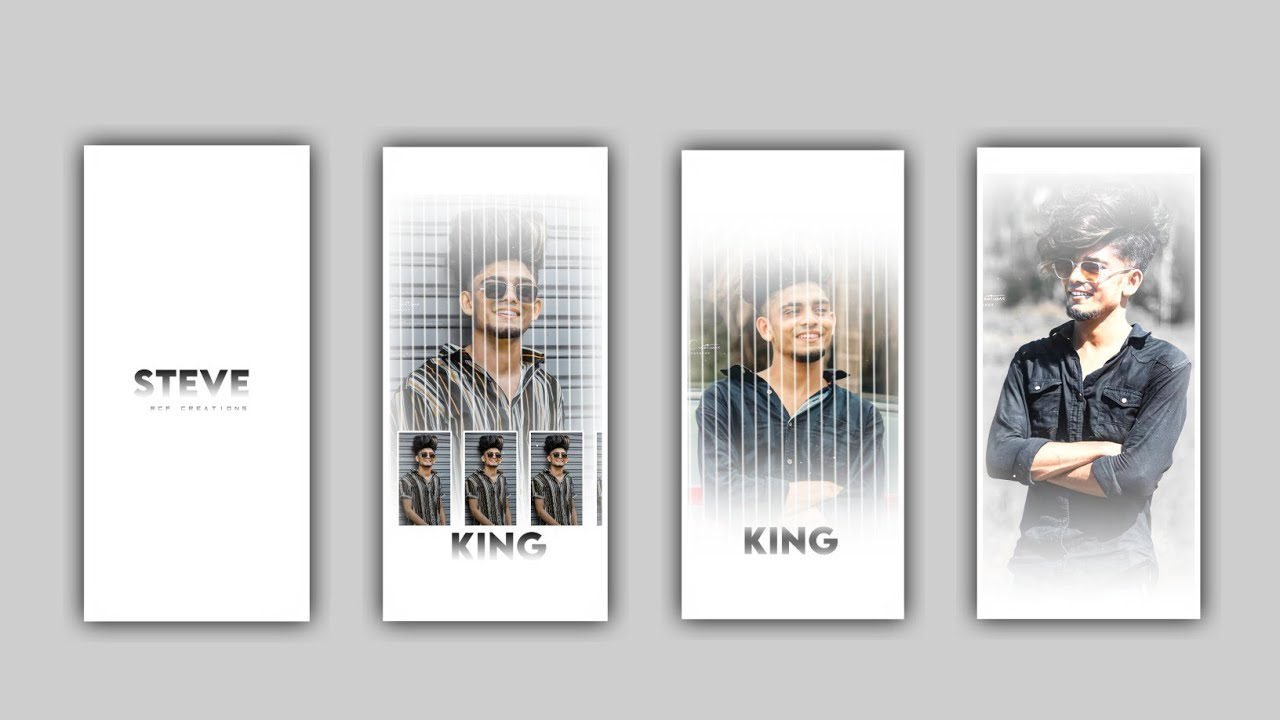
In this project I will explain about how to change the colour in the images by using editing applications. This project we need to use for applications to edit one is kinemaster and another one is alight motion.
After that on the kinemaster application and choose the 1:1 ratio and now click on media to select which image you need to add for this project. And click on the plus icon to add the image into this project.
After that click on the photo and select cropping after that drag the added image upto 40 seconds. And select the layer option to choose the media. Before that I will give you a border link in description After that zoom the image.
After that again click on the layer option to choose the media and select the green screen image which is provided in the description and select it by clicking the plus icon. After that select the option croma key.
After that adjust the image into middle of the project. After that Click on share option and select the ratio with your to export the process of this project it will take some time Nd added into your gallery.
After that we need to reddit in alight motion application. Open alight motion application and to choose the ratio 1:1 and click on create project for editing this project.
Now click on image and video to select the edited image into this project by clicking plus icon to add into this project. After that Click on effects and select the effect colour light to choose Hue shift with standard settings and open and see the interface and tap on plus symbol to adjust the scales and and again forward to middle tap on plus symbol to adjust the scales to change the colours of the photo.
After added the image you need make the photo full screen by clicking the option three dots to choose full composition area to fill screen the image. After that we need to process the effect oscillate with standard settings and select angle and keep it as 95.7° and keep frequency as 0.30Hz, After that click on add effects to h select swing effect with standard settings and keep frequency as 0.10, select angle 1 and keep as 2.0° and angle 2 and keep as -2.0°. After that click on edit text option to make a text layer.
After that click colour and field to choose lightern to select screen enable. And decrease the capacity upto and again add smoke effect After that click colour and field to choose lightern to select screen enable.
I hope you guys will understand this project you can also try this blinking Nas color changing project with our own photo it will be edited in to applications but the preset in discription to download it to edit with your version.
click on export icon to export this project as in PNG image now the process will be completed so please support us by visiting our website we can generate more content in future to create best projects thank you.
All Materials Links :-
►Kinemaster Preset Link 👇
DOWNLOAD
►Beat Mark project preset :
DOWNLOAD
►Beat Mark Xml file Link :-
DOWNLOAD
►Shake effect Preset LINK 👇
DOWNLOAD
►Shake effect XML LINK 👇
DOWNLOAD
► Song Download Link 🔗
DOWNLOAD


















Post Comment