👌New Birthday Video Editing in Alight motion Happy Birthday video editing Tutorial Birthday Edit 2nov1
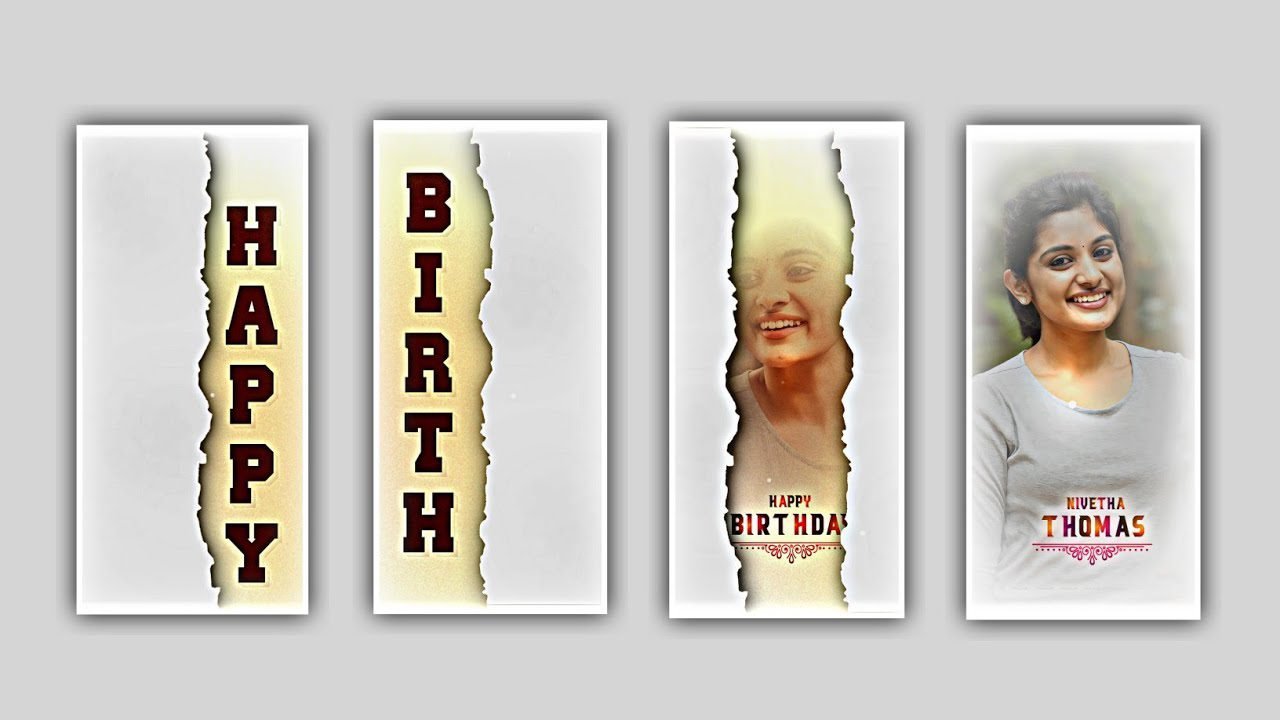
Trending 3D animated video editing by using alight motion application. Open Alight motion application click on plus icon and choose the ratio and alao keep background colour with click on create project.
and that i will give you text animation preset and XML links in description import To The beat mark project. And also given full project link in description have a glance on it. And now open the preset and you’ll observe the said text animation. Replace the effect and click on plus icon and select the project the ratio of 4:5. then click on plus icon and there is an option paste the 2 layers and paste it.
And then click on plus icon and select the option audio and click on view all. i will be able to also given audio link in description click on plus icon to add the song into project. And now you would like to add the lyrics for the said project. Before that you simply can add the lyrics in notepad previously after that click on text option and now go back to notepad and copy the song lyrics from there and come back to beat mark project and paste the lyrics.
l
And trim the additional unnecessary part. And again click on paste the 2 layers option and the lyrics one by one till the end of the lyrics and the same process will be continued till the end of this project. and click on on export option and click on high quality to export the video it will take some time and save it to the gallery.
then we can connect secure VPN after that click on connect option after that we can use the another app called capcut. then click on new project in capcut application. And now add the video which is edited in alight motion application. then play the video and watch the lyric ending and select the lyrics layer and the same process will be continued till the watching video by clicking split option.
After that select the first splitted lyric and now click on animation to add the effect glowing effects and select the effect glow scan with standard settings and select threshold and starting and keep it is 0.00 and add a key from in ending and keep it as 1.54 and therefore the selected radius and keep it is 0.45 and choose together and keep it as 2.79 and choose smoothing and keep it as 0.79 and choose the option fill and keyboard as 100% also keep them as 100%.
and choose the effect slide and wave and same to be applicable for this second lyric and the same process will be continued till the end of this video. And now play the video and watch the consequences whether it is added or not.
therefore the process of video editing will be completed please select the option download and download the said project. So guys hope you’re understanding the lyrics editing process please support us for further editings by visiting our website Thank you.
All Materials Links :-
►Kinemaster Preset Link 👇
DOWNLOAD
►Beat Mark project preset :
DOWNLOAD
►Beat Mark Xml file Link :-
DOWNLOAD
►Shake effect Preset LINK 👇
DOWNLOAD
►Shake effect XML LINK 👇
DOWNLOAD
► Video All photo LINK 👇
DOWNLOAD
DOWNLOAD
DOWNLOAD
► Song Download Link 🔗
DOWNLOAD


















Post Comment