Trending 3D Typography Lyrical Video Editing in Alight motion Instagram Trending lyrical video edit 9nov1
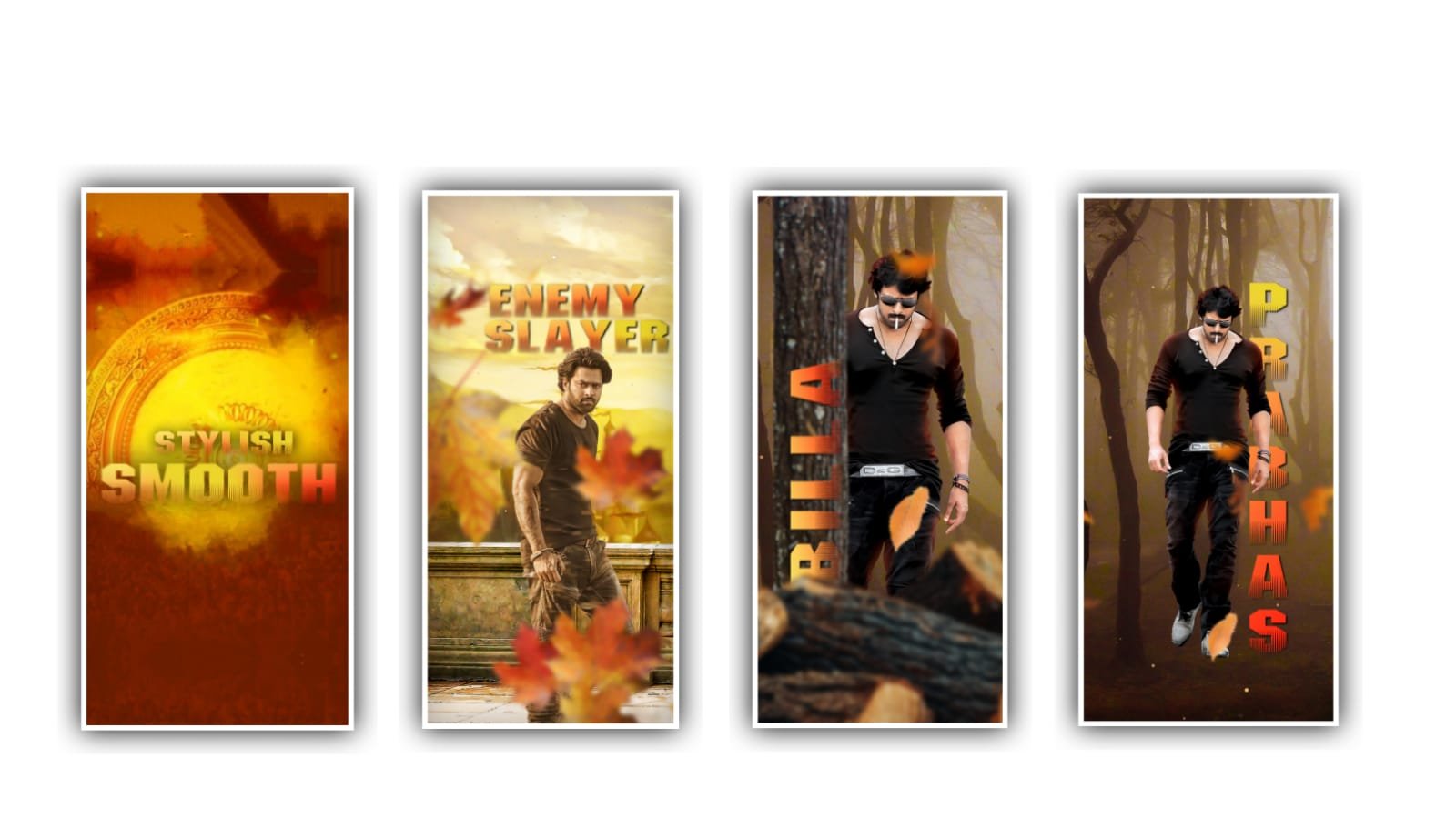
Hi guys in this project we will explain about best video quality improvement editing can be explained by using alinght motion application.
Now open alight motion application click on plus icon to choose the screen ratio as default which you prefer or otherwise you need to customize 1080p X 2340p resolution and keep the background as white and click on create project to edit this project with the best quality purpose. Please follow the instructions then you can understand how to improve the quality of videos in your phone while using application please follow the instructions to create this project.
After that you must to add the video into this project for that click on image and video to choose the option view all to choose the video which you want to edit for this project Choose it by clicking plus icon to add. After that observe the length of the video to trim them upto 30 seconds.
After that click on plus icon to choose the option rectangle and negative full screen by using more transform and adjust them with your fingertips. After that click on effects to choose option to add search copy background with standerd settings. After that again click on add effect and choose the effect highlights in shadows with standard settings.
And now open the settings of the effect and now keep the highlight and keep it as 146% and shadows and keep it as 76%. After that click on effects to choose the effect and search channel remap RGB with standard settings. After that choose the letters which you want because it will create with the RGB effect.
Now again you must add another effect for this project for that click on saturation / vibrances with standard settings and keep the saturation as 37% select vibrances and keep it as +9%. After that click on effects and select the effect highlights and shadows with standard settings and keep the highlights as 125% and now keep the shadows as 93%.
After that click on add effects and choose the option add effect vignate with standard settings and keep the size as 98%. And select the feather and keep it as 1.45 and select strength and keep it as 1.30, and choose end and keep it as 48%. After that click on add effects and choose the effect faded out with standard settings and keep in =60, and select out =58.
After that drag the first effect to end for this project this project play the song to observe the effect there you can observe the effect with high quality video So hope you are understand chick on export icon to export this project with high quality it can be taken some process time to add the project automatically into your gallery with high quality.
After added the video into your gallery then play the video of the edited project and observe colours of this project the improvement will be best quality. Hope you guys will understand how to process this editing project with using alight motion application.
I’m requesting you that please support the website by visiting because your support will help us a lot for further upcoming projects and keep the same support in future to create more content editing tutorials by using editing of this project thankyou.
All Materials Links :-
►Kinemastar Preset Link 👇
DOWNLOAD
► Full Presets LINK :-
DOWNLOAD
► Full XML file LINK :-
DOWNLOAD
► Lyrical effect Preset LINK 👇
DOWNLOAD
►Lyrical effect XML LINK 👇
DOWNLOAD
► Video All photo LINK👇
DOWNLOAD
DOWNLOAD
DOWNLOAD
DOWNLOAD
DOWNLOAD
DOWNLOAD
► Song Download Link 🔗
DOWNLOAD


















Post Comment