Trending Na Roju Nuvve lyrical video editing in Alight Motion 10may
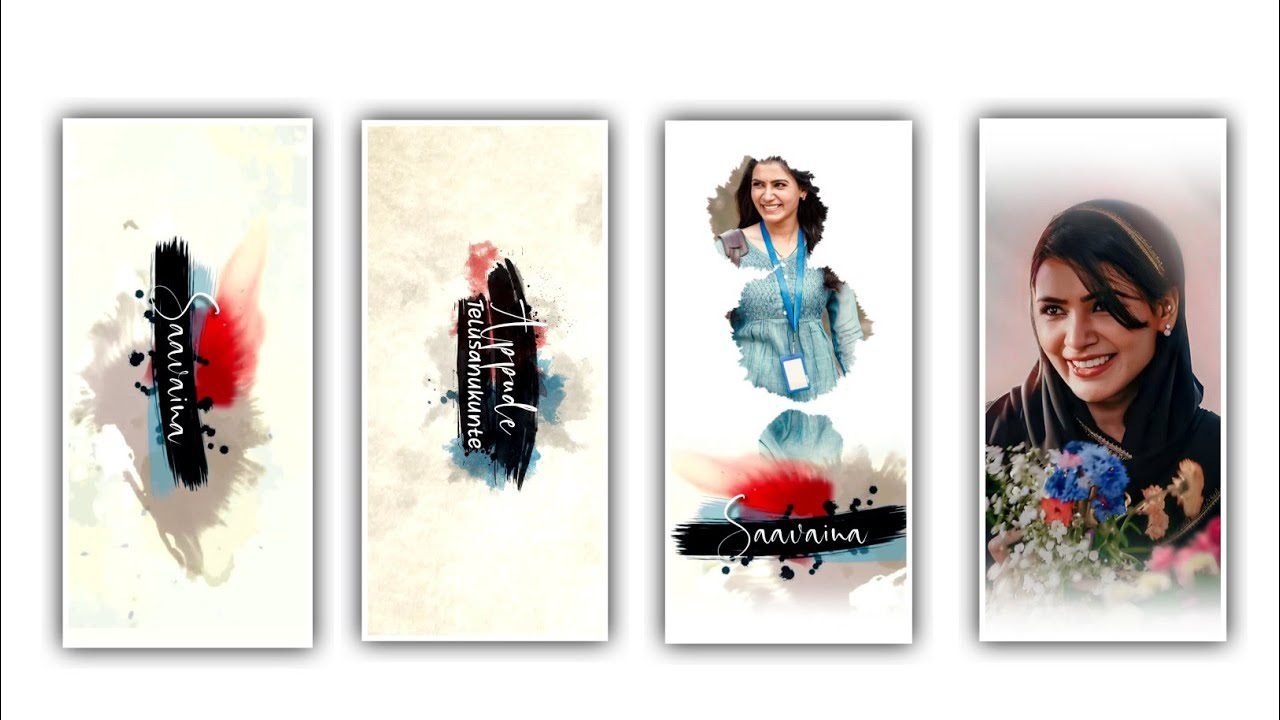
Hi friends in this project I’m ready to explain the best quality new style lyrical video editing by using Alight Motion application. Before editing this project I need your support for encouragement because your support will make me happy to edit the best quality trending lyrical projects. And I will provide each particle links in description You can understand the process of editing more trending projects.
Let’s see about today’s article before editing this project you can download the beat mark lyrical video editing which is given in description. It is the easier way to process the further editing. Only using the beat mark we will edit this project no need any shake effect to edit.
And I can also provide a full preset link in the description please download to start the editing process for photo replacement. But when you replace the photo there is a problem that occurs in adjustment. Now simply open the beat mark.
Now download the font from description to add into this project. After that you can add the happy birthday video and I will provide it in description so see that in description please download and add into this process of the project. Unknown click on edit text to change the name which is added in previous you can modify that with your name. After that you can add the photos of the birthday person by choosing it from the media and add the images by plus icon. After adding the images you can adjust with your fingertips or keep the option full screen to zoom the image.
Now we can add effects for this project for that Click on move and transform and key frames for that add a key frame in starting and before middle and add a key frame in ending. After that copy the first layer to the same effects for the remaining layers.
After that I will give you a brush video in the description of what you guys like to add into this project it will create some different effect. After that process you can add the lyrics into this brush layer. Now you can add the three combo photos that can be required for editing. After that we need to add an effect to the entire project while clicking the layer of the photo.
Now click on add effects and choose the effect saturation with standard settings and keep the saturation as -100, And now add another effect vignette with standard settings and choose the option punch enable and choose the option feather and keep it as 1.000, now you can copy the same effects for remaining lyrical layer photos and it can be defined in group photos. I would like to ask everyone to support my website so that you can ask me through the comment section about the editing work you need. And in the next video we will learn about many more such impact video editing.
Now add the effect raster transform with standard settings and keep scale as 1.00, and choose angle and keep it as 0.0°, and choose offset and keep X=-159, and Y= 0, and keep alpha as 100%, effects adding of this project will be completed. If you want to know more about such editing videos, please do my channel support and this video has been given a full preset link in this description.
Anyone who is interested is asking you to download it through that link as well as how much you need to learn this editing because I will tell you through these videos about many various Effects. Similarly, giving you a preset link will also give you the opportunity to try the same video on your phone photos. I earnestly wish you understand the subject of this and take advantage of it.
►Kinemastar Preset Link 👇
DOWNLOAD
►Beat Mark Presets LINK :-
DOWNLOAD
►Beat Mark XML file LINK :-
DOWNLOAD
► Video All photo LINK👇
DOWNLOAD
DOWNLOAD
DOWNLOAD
DOWNLOAD
DOWNLOAD
► Song Download Link 🔗
DOWNLOAD


















Post Comment