How to make videos like filmmoji and funmoji and basic details 9739
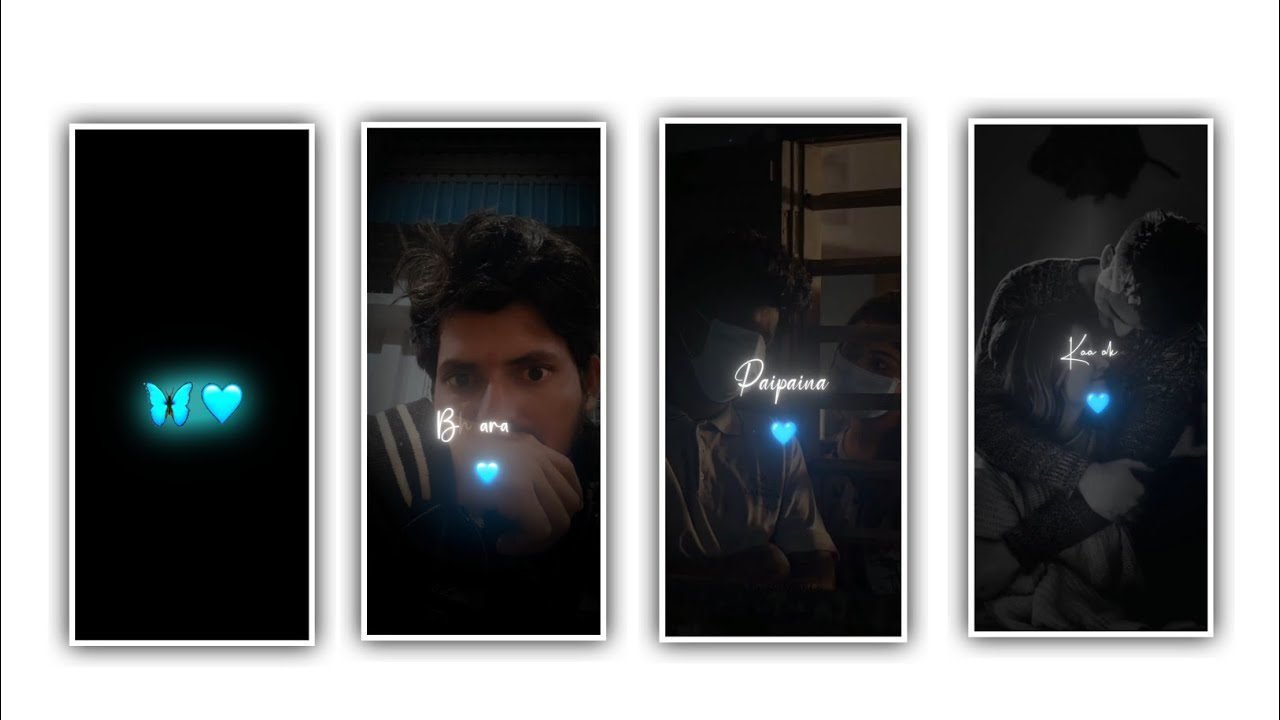
hi friends how are you Through this article I am going to tell you how to edit funmoji and filmmoji videos specifically now I am going to tell you about particular editings because this editing process is very easy but you have to be a little hard in editing so if you want to upload videos like this. Then you are particular in this and you start the editing process only after knowing completely about the hospitals so let’s know about the complete details. If anyone shows interest in editing such videos please support and support so pay careful attention as I am going to tell you about this process. Many people have doubts about how to remove the background of actual videos, if you just use the green screen back side and you can easily remove the complete background because you can find the photo automatically.
And you can directly remove the background using some applications or otherwise in this video editing. The background is green then only if the screen is there we can particularly remove from your video. Particularly if you want to remove the background and add another background please use the kinemaster application and now I will tell you how the process can be explained.
You first open the kinemaster application after opening it you will see inside the interface click on it then it will ask you the ratio 16:9 ratio and click on create project. If you select it in the project then enter then whatever video you have edited then you need to add that video to this project called layer and click on the layer option and choose the Videos option and add the video you have edited to this project. If you use a background like in kinemaster you will definitely get a watermark if you download hd background image through chrome the background image will be downloaded without any watermark.
So you have to add that image to the projects for that you again click on layer option and images Click on and option and add the background layer to this project. After adding and if you click on the three dots above one of the videos you have edited earlier will be the background image layer as you have added. The image will be added and then you can adjust it correctly and save it. After that you need to drag the desired background layer into the project as much as the video layer. By doing this. And we can easily edit the desired HD background for the project.
After that in the options that you see there is an option called cromakey click on it and you have to enable it. By clicking that the background will merge correctly otherwise you should set the color to be a bit more natural because the background you put is the original. And you need to set otherwise everyone will understand that it is a duplicate. So you have to make sure that the color of the background image is correct so you can easily add the background image.
Many times we see the same people appearing under two or three in the same video and many people asked what kind of editing is done, so how to do it means you can do it through the kinemaster application first, let’s learn how to edit. For that you click on the plus icon as usual and select the ratio if you are video then select 16:9 ratio for sure. Now whatever video you have edited, click on the option of not having the same video and go to this video option and select the same video. After doing this process the editing can appear perfectly. If you want the same person to appear next to you, click on the option that you are not there again you go to this video and select the same video again and add it to these projects.
After adding it put it on the right side. If you want to add the same person you can add a single person in this way and if you want to appear in the second year of the same person other than the same person. Then you must select the video related to him and add it to this project and then you must make the adjustment after adding it. because there is no problem in deviation. This is only possible if you adjust carefully to avoid it.
Also when you use the kinemaster editing application then you have many types of color adjustment. So you should design the color adjustment to be very natural, because after editing. And if the image or background is the same it will not feel like you are editing two videos so that you can edit the content correctly. After that click on the Chromakey option that you see there and enable it and make the connection. If you edit in this way and there is a matter how many people you put the video will not be set to process. Otherwise if you put two or three in particular the video editing will be correct.
Similarly whatever audio you have added to this project. And if you don’t like the audio and if you already have the audio you have edited through the mic, you can work on the project and adjust it so this editing process is perfect. Because when you edit them and you have to check if your lip sync is correct because if the speech goes first and then the video is played, the editing process will not be perfect. You have to edit it perfectly so that you can get it right. After editing and if you think your phone voice is not good. When you use this application you will get many types of audio options that is you can design your own voice. Instead of using their vocals to match the voice that exists here and assign the voice to a certain person.
In this way we can completely complete the editing process so everyone should learn carefully about the editing process because by learning this you will have a chance to edit yourself because every person will edit themselves if it comes to editing and as a rule I will tell each and every thing step by step. I hope all of you like this process through another article I will try to explain if there is any editing process. But you definitely support my website. And you are giving me your valuable support. So I am going to tell you about this kind of content and I also hope to continue this till the end through the next article. I will come back to discuss the editing process thank you.
►Kinemaster Preset Link 👇
Wait for sometime
►Beat Mark project preset :
DOWNLOAD
►Beat Mark Xml file Link :-
DOWNLOAD
► Song Download Link 🔗
DOWNLOAD
►Shake effect Preset LINK 👇
DOWNLOAD
►Shake effect XML LINK 👇
DOWNLOAD
►Video Photo LINK 👇
DOWNLOAD


















Post Comment